
Setup to Process Credit Card Transactions
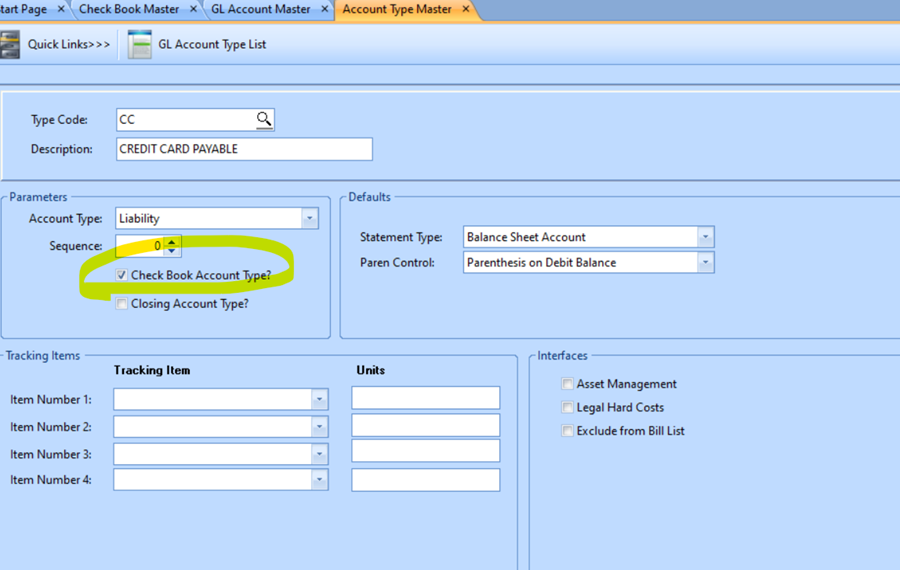
New Account Type
 MAINTAIN menu > Account Type Master
- TYPE CODE, enter a two digit code to identify the account, i.e., CC
- DESCRIPTION, type the description i.e., CREDIT CARD PAYABLE
- PARAMETERS Section
- Account type should be set to liability
- Sequence – leave set to zero
- Check mark the Check Book Account Type
- Closing Account type should Not be checked
- DEFAULTS
- Statement Type should be Balance Sheet
- Paren Control should be Parenthesis on Debit Balance
- TRACKING ITEMS – do not use
- INTERFACES – do not use
- Save the Account Type
- Then you need to setup new GL Account, Pay Group and a Check Book. As you set each up, you will need to update each with links to the others.
Setup New GL Account
NAVIGATION: MAINTAIN menu > GL Account Master
- ACCOUNT NUMBER, enter a new Liability Account to use for this Credit Card.
- Horizon does not recommend using 1 Account for multiple credit cards. Create a unique Account for each card.
- DESCRIPTION, Enter a full description to identify this card
- ACCOUNT TYPE, enter CC
- Statement Type should default to Balance Sheet
- Paren Control should default to Parenthesis on Debit Balance
- CB LOCATION, select the company
- Click Apply
- CHECK BOOK, Come back and enter this after saving your checkbook ID below.
- Click Apply
See Also: General Ledger - GL Account Master
Setup New Checkbook for Credit Card
The Credit Card account will be setup as a check book. This CC Check Book will contain the Charges (purchases) on this account and the Payments to lower the balance due. You will be able to reconcile the account to your Credit Card Statement similar to a bank reconciliation.
NAVIGATION: MAINTAIN menu > Check Books
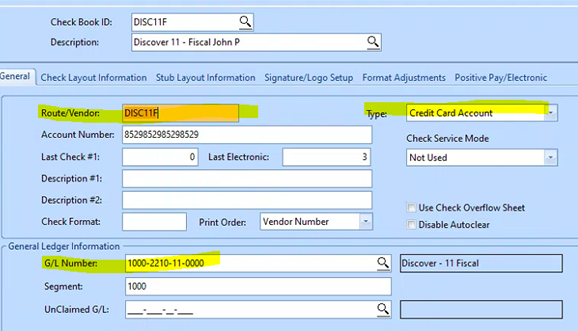
- CHECK BOOK ID: enter a code to identify the account, i.e., “DISC11F”
- The ID code is permanent and cannot be changed.
- Recommended: start code with CC or the Card Name "DISC" for Discover, "VISA", “MC” for MasterCard, etc. Ending with an internal designation to easily identify it.
- Horizon does not recommend using the last 4 digits of the Card Number as part of the code, if your account information is compromised, the card # will change.
- DESCRIPTION: enter a full description to identify this card.
- The Description can be changed later such as if the user changes. i.e., "Discover 11 – Fiscal John P”
- ROUTE/VENDOR: enter the vendor number of the credit card vendor.
- You may use the same vendor for multiple cards, or create a unique AP vendor to match each card.
- TYPE: select "Credit Card Account"
- ACCOUNT NUMBER: enter the Credit Card Account #
- GL NUMBER: Enter the General Ledger Liability Account for this credit card.
- SEGMENT: (Optional) If using Segment Balance controls: Enter the segment Control (usually first segment of GL account)
See Also: Check Book Master
Setup a New Vendor
NAVIGATION: MAINTAIN menu > Vendor Master
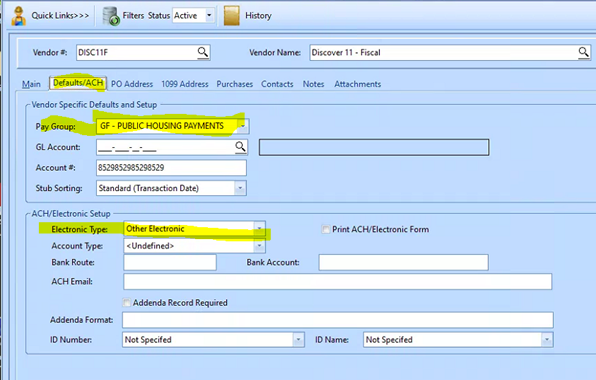
- You may setup a new Vendor to match each Credit Card or use the same vendor# for several cards issued from that vendor.
- The vendor # must match the Route/Vendor used in the Checkbook, I.e. “DISC11F”
- Enter the pay group for how you will pay off the credit card.
 IMPORTANT: This is a regular cash pay group, this is NOT the Credit Card pay group used to enter credit charges.
- Electronic Type: Select your normal payment method for this vendor, Standard paper checks, Bank ACH, or Other Electronic.
See Also: Vendor Maintenance - Vendor Master
Setup New Pay Group
There should be one Pay Group for each credit Card Account
NAVIGATION: MAINTAIN menu > Pay Group Master
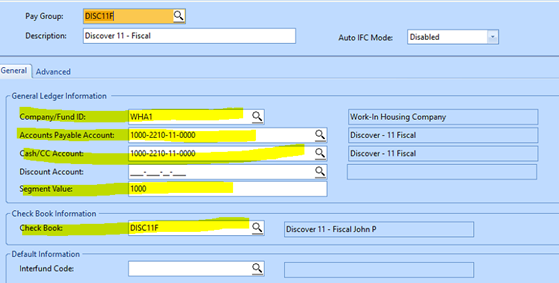
- Pay Group: Recommended Enter the same Code as used For the Check Book. i.e., “DISC11F”
- DESCRIPTION: Enter the same Description as used For the Check Book, i.e., "Discover 11 – Fiscal John P”
- COMPANY/FUND ID: Enter the Company this check book is in
- ACCOUNTS PAYABLE ACCOUNT and the CASH/CC ACCOUNT should both be setup with the same GL account setup above as a CC liability account.
- SEGMENT: (Optional) If using Segment Balance controls: Enter the segment Control (usually first segment of GL account)
- CHECK BOOK: Enter the check book setup above i.e. “DISC11F”
See Also: Pay Group Master - Setup a Pay Group
4/2023