
10/30/2012
Go to Maintain>>Budget Master
In this area of the program, you may setup budget information by year, update financial statements, setup working budgets and print budget information.
See Also:
Enter the budget year you wish to setup or recall budget information for.
Depending on the general ledger setup, one or more general ledger segments may be displayed. To setup budget information by a segment/filter, select or enter the information in the appropriate field.
Click this button to bring the profit and loss information over into the grid according to the budget year and the general ledger information entered or selected. This will also recall previously entered budget information for the selected Budget Year.
Enter a check mark in the square to add new or missing account information in the grid when the Build/Retreave Budget button is clicked.
Displayed in the grid are the account number, description, comparative, approved and working Revision fields. If this is the first time you are pulling the information, the account number and description will be the only fields with information. All the other fields will contain zeros.
If you are retrieving budget information that you have already been working on, some or all of the fields may contain amounts.
This column will contain the profit and loss general ledger accounts based on the information entered in the budget year and accounting segments.
Displays the description entered in the general ledger accounting master for the account number shown in the previous column.
This column will display amounts from a previous fiscal year's budget master from the Working Revision column. The information may not be adjusted and is for reference information only.
If you have a previous year's budget information entered and it is not shown in this column click the Force Rebuild button to bring the previous year's Working Revision information over into this column.
Enter the approved budget amounts for the appropriate general ledger account in this column.
After the budget information has been entered in the approved column. The information may be moved over into the working revision column by clicking the Setup Working button.
Make any future adjustments to the budget in the working revision column.
Users may change the order of how the general ledger accounts are displayed by selecting a user defined order, if available. Otherwise, leave at Standard.
Click the Create Excel Export button to export budget information for a selected year. The export process will open the file directly into Excel. It is also saved in the users hztemp file under their login name. (i.e. C:\hztemp\Cindy\glbudget.xls)
A sample export is shown below:
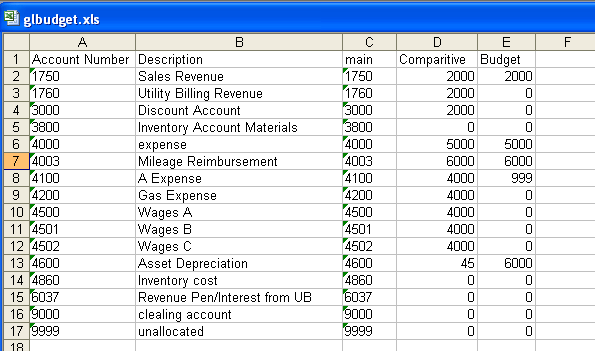
Budget information may be imported into the Budget Master from an excel file using a drag and drop method. Create an excel file with the following columns or use an exported file to import:
Account Number
Description
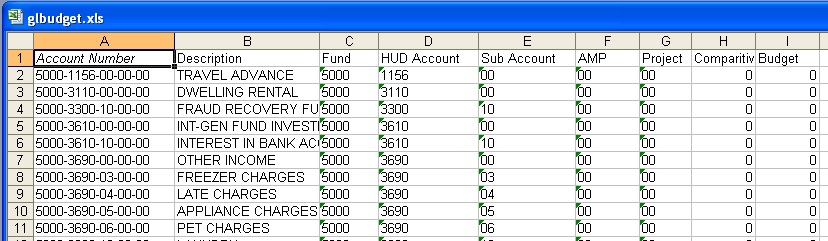
A column named for each of your general ledger segments
Comparative
Budget
You may also export budget information using the Create Excel Export button. Enter or change budget information in the excel file, budget column, and import the changed file back into the Budget Master.
Save your Excel file. Click on the saved file and Drag the file over to the Budget Master grid and Drop it. The information in the Excel file will be entered into the Budget Master.
A sample Excel file showing more segment values is shown below:
This button transfers the information from the approved column into the Working Revision. This is where all future changes should be entered as this is the column that interfaces into Financials.
Click this button to send the information from the Working Revision column to financials. Budget information will show up on financial statements once the update has been run. If changes have been made to the Working Revision column, run the update financials program again.
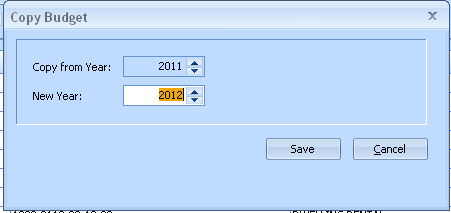
Click the Quick Link>>Duplicate button to open the Copy Budget program. Enter the new year and click the Save button. Cancel may be clicked to close the program without copying the budget.
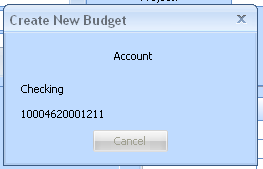
During the process, the following progress box will be displayed.
When the process is finished, a Process Complete box will be displayed:
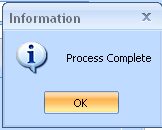
Click OK on the process complete information box.
The new budget year will be in the Budget Master with the previous years information shown in the approved column. Update any changed budget information for the new year or leave as is if the budget remains unchanged.