
Previously Print would close the view and Preview would keep the view open after printing. Now when the Print options is selected, the view will remain open until the user closes it.
Go to Reports>>Open Inspections Report
Go to Reports>>Inspection Summary Report
Added Inspection Type Selection check boxes for
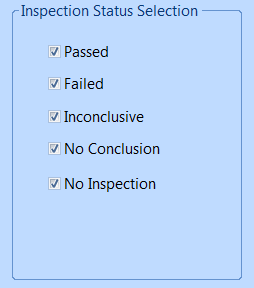
Added Inspection Status Selection check boxes for
Go to Reports>>Community Inspection Report
Added the ability to check or uncheck one or more Inspection Status Selections - they are all checked by default
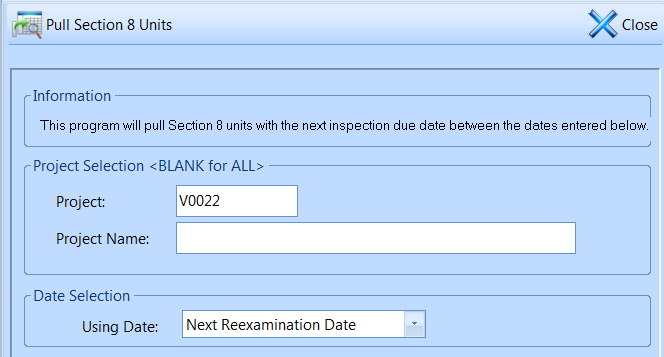
Go to Processes>>Pull Section 8 Units
Added the ability to pull Section 8 units by entering the Project #
Go to Activities>>Inspection Master
Added an Assign Existing WO button
Use this button to open the Work Order Browse and select an existing work order to assign to the inspection
A second work order cannot be created or assigned to the inspection once one is shown in the work order box
Go to Reports>>Community Inspection Report
Added Follow-Up Only Mode checkbox as a selection option
Note: The Follow-Up button only works when a dictionary has been setup with follow-up options. Most dictionaries will not work with this option and the report will be blank.
Go to Activities>>Inspection Master>>Quick Link>>Reset
Unlock Inspection; new program added under Reset
Will unlock a locked inspection
Note: If an inspection is re-synchronized from the handheld it will overwrite the unlocked inspection.
The Effective Date has been removed for all programs
Added the ability to change passwords
Enhanced administrative functions
Go to Maintain>>Inspection Master
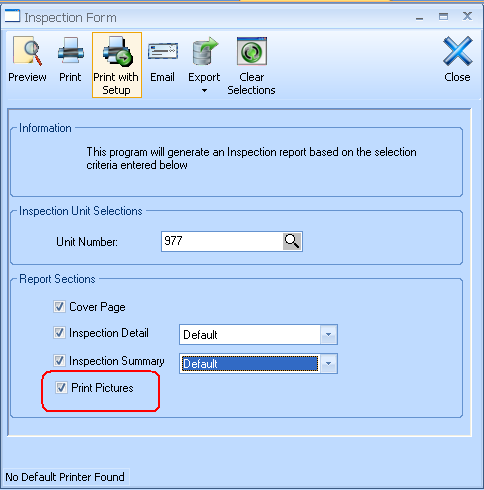
Added a Print Pictures checkbox to the Inspection Form dialog box
Adds the ability to print inspection pictures from the Print>>Inspection Form print dialog box
Go to Inquires>>Inspection History
Added a Signature tab page
Added a Pictures tab page
Added a Print Pictures checkbox to the Inspection Form dialog box (see above picture)
Adds the ability to print inspection pictures from the Print>>Inspection Form print dialog box
Go to Reports>>Inspection Form
Added a Print Pictures checkbox
Gives the ability to print pictures for a range of inspections
Go to Maintain>>Dictionary Books
Added Time Frame 1 through 8 and Dflt Time Frame fields to setup repair time selections
Go to Maintain>>Dictionary Maintenance
Added Dflt Repair Within field
Select Time Frame options setup in Dictionary Books
Go to Activities>>Inspection Master
Added a Signature tab page
Added a Pictures tab page
This program was compiled for data compatibility
Go to Processes>>Unit Master
Tracking tab added
Changes to the Unit Master will be tracked automatically
Tracking items can be added Manually (Add Tracking Item)
Tracking items can be printed (Print Tracking Items)
Go to Activities>>Inspection Master
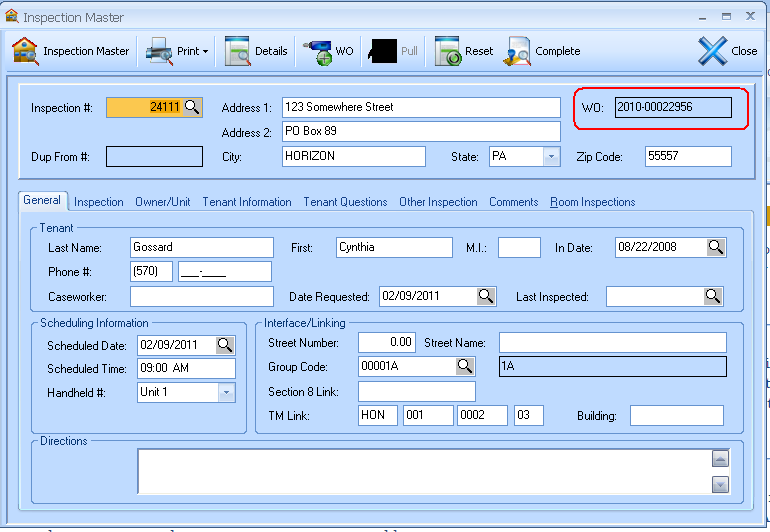
Added a WO field to display the work order number that is created for a Public Housing Inspection
Go to Activities>>Inspection Master
Room Inspections
Fixed the error that occurred when trying to Add A Room
The program has been compiled for data compatibility in version 16.
The inspection program has been upgraded to Version 15.
Changes:
Added Inspection Quick View to the right of the Start Page
Click on a column header to group information, then enter information in Filter Search to search
Double click on an entry to open the Inspection Master with the inspection information
Click on the pin icon (extreme right of the Inspection Quick View to keep the view open
Start page will move to the left
Programs will open to the left of the Quick View
Click on the pin icon again to close the Quick View
The size of the Quick View can be made larger or smaller when pinned
Quick Link menu programs are now shown as Icons on Toolbars at the top of the programs
Inspection Master has been moved to Activities from Maintain
Dictionary Book Master has been renamed Dictionary Books on the Maintain menu.
Inspectable Area/Room Types has been renamed Inspectable Areas (Rooms) on the Maintain menu.
Schedule Inspections Single Date/Time has been renamed Single Date/Time above the sub menu of Inspection Scheduling
Schedule Inspections Multiple Date/Time has been renamed Multiple Date/Time above the sub menu of Inspection Scheduling
Calendar Scheduling has been renamed Calendar Style on the Activities menu above the sub menu title of Inspection Scheduling
Process Batch of Inspections moved to Activities from Processes and renamed Process Completed Inspections above sub menu of Batch Processes
Units Not Scheduled Report has been renamed Non-Scheduled Inspection Report on the Reports menu above the sub menu Scheduling Reports
Scheduling Worksheet Report has been renamed Inspection Scheduling Report in the Reports menu.
Pull Public Housing Units/Buildings has been renamed Pull Public Housing in the Processes menu above the sub menu Tenant Management Interface Process.
Tenant Management Unit Master has been renamed Unit Master in the Processes menu above the sub menu Tenant Management Interface Process
Tenant Management Building Master has been renamed Building Master in the Processes menu above the sub menu Tenant Management Interface Process
Inspections Due Report - By Community has been renamed Inspections Due Report on the Processes menu above the sub menu of Tenant Management Interface Process
The Section 8 Reexamination Report has been renamed on the Processes menu as Reexamination Report above the sub menu Section 8 Interface Process
Rebuild Inspectable Item Sequences has been renamed on the Utilities menu as Inspectable Item Sequences above the sub menu Rebuilding
Rebuild Dictionary Order has been renamed on the menu as Dictionary Order under the Utilities menu above the sub menu Rebuilding
Rebuild Unit and Room History Cross Reference has been renamed on the menu as Unit and Room History Cross Reference under the Utilities menu above the sub menu Rebuilding
Inspection has been renamed Inspection Settings on the Settings Menu
Merge Template has been renamed Merge Setup on the Tools Menu.
Go to Activities>>Inspection Master
Print Inspection Form and Custom Forms and Letters are located under the Print icon on the Inspection Master Toolbar
Custom Forms and Letters from the Inspection Master- the Print, Letter Date, Override Selections and Force Printer Setup has been moved above Letters.
The following Quick Link programs are listed under Pull:
Public Housing Unit
Public Housing Building
Public Housing Site
Section 8 Unit
Rent Reasonableness Unit
The following Quick Link programs are listed under Complete:
Move Inspection to History
Close and Duplicate
Void Inspection
Go to Inquiries>>Inspection History
Print Inspection Form and Custom Forms and Letters are located under the Print icon on the Inspection History Toolbar
The following programs are found under Change Status on the Toolbar:
Move Inspection to Active
Duplicate and Move to Active
Void Inspection
The Inspection History program is used to view both inspection history and voided inspections
Set the Filter to Complete to view inspection history
Set the Filter to Voided to view voided inspections
Go to Settings>>Inspection Settings
Added Calendar Settings tab
When "Enable Outlook Integration" is checked and settings information is entered:
Appointment day and times will be added to your outlook calendar when information on this page is setup.
Changes made in outlook to appointments will not affect information in the Inspection module.