
Step 6: Process the First 2026 Payroll
Year-End Payroll Accrual (Optional)
Use this if your fiscal year ends December 31 and you want to split your first payroll between 2025 and 2026.
- When setting up 2026 pay periods in Pay Date Master, enter an Accrual Date of 12/31/2025.
- Set this date before you run Auto-Setup Time Cards for the first 2026 payroll.
- When Auto-Setup runs, it splits the hours into:
- Hours dated 12/31/2025 or earlier = 2025 expenses
- Hours dated 1/1/2026 or later = 2026 expenses
Run System Check
- Run a system check: Navigation: TOOLS menu > System Check
- Confirm:
- New pay dates are set up for 2026.
- Tax tables and unemployment settings are correct.
- Employee pay rates and deductions are correct.
Process First 2026 Pay
Process the first 2026 payroll as usual.
Addition of Overtime to W-2 Forms
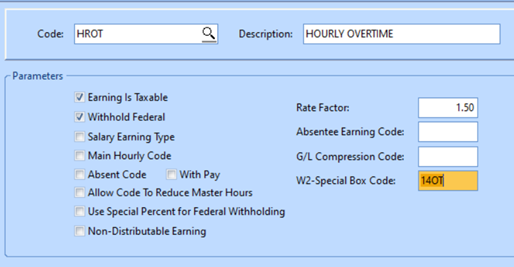
 Navigation: MAINTAIN Menu > Earnings Master
- Select the overtime code
- In the Parameters section, find the box labeled W-2 Special Box Code, enter “14OT” (14=Box 14 and OT=Overtime) and save changes.
How Overtime Is Reported on the W-2
When overtime is reported on the W-2, only the overtime premium is reported — not the employee’s full overtime earnings.
Example:
• Regular rate: $20.00 per hour
• Overtime rate: 1.5 × $20.00 = $30.00 per hour
If an employee works 10 hours of overtime:
• Total overtime pay: 10 hours × $30.00 = $300.00
• Regular pay for those same hours: 10 hours × $20.00 = $200.00
Overtime premium reported on the W-2: $300.00 − $200.00 = $100.00
In this example, $100.00 is the amount reported as overtime premium on the W-2.
See Also:
12/2025