
Step 4: Review and Update System Settings
Create New Paydays
 Navigation: MAINTAIN menu > Pay Date Master
- Select the Pay Frequency: Weekly, Biweekly, Monthly, or Semi-Monthly.
- Click CREATE PAY SCHEDULE.
- Review the new schedule, checking:
- Month Beginning/End checkmarks
- Quarter Beginning/End checkmarks
- Accrual Dates
- Federal Holidays/ACH payment timing
- 2026 should be available in the drop down after these steps.
Updating Number of Pay Dates Per Year
The number of pay dates per year varies depending on the year and the organization. This number can be verified or updated in the payroll settings menu and should be reviewed before processing the first payroll of the year.
Navigation: SETTINGS menu > Payroll Settings > Main Tab
- In the section labeled Payroll Timing Information, find the box labeled Yearly Bi-Weeks to view the current setting.
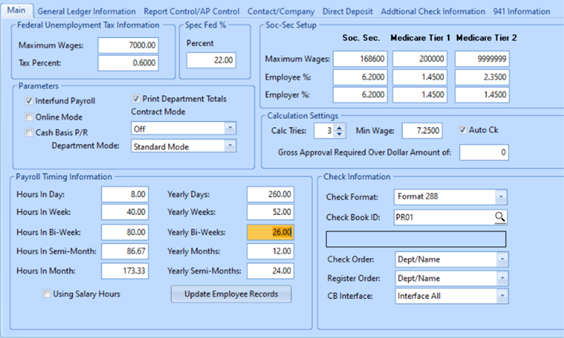
- If this number matches the number of pay dates for your organization in the upcoming year, no changes need to be made.
- If this number does not match the number of pay dates for the upcoming year, update this field to the correct number.
- Click the UPDATE EMPLOYEE RECORDS button and save changes.
ACH/Federal Reserve Holidays
On the holidays below, ACH does not process. If a pay day falls on one of these dates, move it to the workday before or after:
o Christmas Day – 12/25/2025
o New Year’s Day – 1/1/2026
o Martin Luther King Jr. Day – 1/19/2026
o Washington’s Birthday – 2/16/2026
o Memorial Day – 5/25/2026
o Juneteenth – 6/19/2026
o Independence Day – 7/3/2026 (Observed – July 4 is Saturday)
o Labor Day – 9/7/2026
o Columbus Day – 10/12/2026
o Veterans Day – 11/11/2026
o Thanksgiving Day – 11/26/2026
o Christmas Day – 12/25/2026
Set Up New Holidays
If your agency tracks holidays:
Navigation: MAINTAIN menu > Holiday Master
- Enter new holiday dates and descriptions.
- Holiday dates are also used to trigger holiday rates for Work Orders. If no holiday is set, the regular rate is used.
- Do not delete past holiday dates. Old reports need those dates to show holidays correctly.
Change the System Current Payroll Date
Navigation: SETTINGS menu > Payroll Settings
- Go to the Report Control/AP Control tab.
- Set the Current Pay date to the first pay date in 2026 for each pay frequency you run.
Review Pennsylvania Unemployment (UC) Settings
Verify/Update Employee UC Rate – No change for 2026 but verify for accuracy.
If employee UC withholding is calculated in Payroll:
Navigation: MAINTAIN menu > Deduction/Benefit Master
- Open your Unemployment Benefit code.
- Under Employee:
- Amount: 0.0700
- Type: % - Percent Amount
- Maximum: 999999.99
- Check Retain Maximum at Year End
IF THE RATE WAS NOT CORRECT, FOLLOW THE NEXT STEPS 3-5 TO UPDATE:
- Click Apply, then Global Changes (QuickLink).
- Check Employee Amount, Type, Maximum only.
- Click UPDATE.
Employer UC Expense (Used for GL expense allocation; not used for UC quarterly reports.)
If employer UC expense is calculated in Payroll:
Navigation: MAINTAIN menu > Deduction/Benefit Master.
- Open your Unemployment Benefit code.
- Under Employer:
- Enter your company’s UC rate.
- Type: % - Percent Amount
- Maximum: rate × 10,000.00 (for example, 3% → 0.03 × 10,000 = 300.00)
- Check Retain Maximum at Year End.
IF THERE WAS A CHANGE, USE THE FOLLOWING STEPS 3-4 TO UPDATE:
- Click Apply, then Global Changes.
- Check Employer Amount, Type, Maximum, then click UPDATE.
UC Quarterly Report Rate (After 2025 Reports)
After you finish your 2025 UC final report:
Navigation: MAINTAIN menu > State Taxes
- Open the State browse and select PA S (single).
- Set:
- Maximum: 10,000.00
- Percent: your UC rate from PA Unemployment
- Click SAVE.
TIP: Put a reminder on your calendar to update the UC rate before starting the first quarter 2026 UC reports.
See Also:
12/2025