
Revised: 04/27/11
Go to Lists>>Employee Labels

This program will generate labels to print for employees based upon the selections entered.
At the top of the view are the following functions:
Select one of the following options or leave at <<All>>:
<<All>>
Hourly
Salary
Select one of the following pay frequencies to print labels for:
<<All>>
Weekly
Biweekly
Semi-Monthly
Monthly
To print labels for employees within a specific department select the appropriate department. To print labels for employees within all departments or if you do not use departments, leave the department field blank.
Use lines 1 through 5 will default to:
Employee Name
Employee Address 1
Employee Address 2
Employee City/State/Zip
<<Blank>>
Information from one of the following may be selected for any one of the lines:
<<Blank>>
<<NOT USED>>
Employee Number
Employee Name
Employee Address Line 1
Employee Address Line 2
Employee City, State and Zip
Employee Department
Employee Social Security Number
Employee Badge Number
Enter a number to adjust the printing of the labels on the left side. The number entered does not affect preview.
Select one of the following orders to print labels in:
Employee Name
Employee Number
Department
Clicking this button opens a browse box where you can pick label formats by manufacturer.
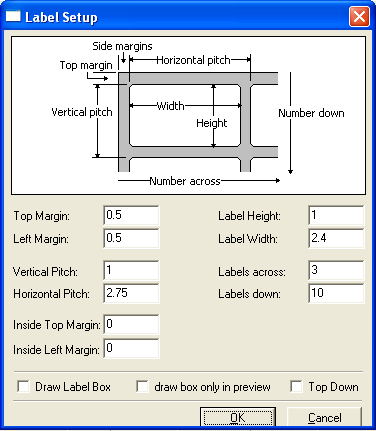
The diagram at the top illustrates where the information you will be inputting will affect the design of the label.
The utility program has default information as shown in the picture above. Make adjustments to the information to change the printable area on a label.
Click in this field to insert a check mark indicating that a box should be drawn around the label when it is printed.
Click in this field to insert a check mark indicating that boxes should be drawn around label information when it is previewed but the boxes should not print on the actual label.
Check this box to have the label information previewed and printed in columns instead of rows
Click the OK button to accept the changes you have made for the labels and close the Label Setup program.
Click the Label Setup cancel button to close the setup program without saving any of the changes.
Enter the number of labels for each employee to print.
When a number is entered into this field, the program will skip over those labels without printing.
Use this field to "skip" labels that have previously been printed on or removed from the page.