
Process Cash Receipts
This area may be used to manually enter cash receipts that are related to your system billing data but were not received via an electronic ACH credit directly to your bank. Typically, this will be for paper check transactions or cash payments.
Cash Receipts Entry
Typically you don't need to make any adjustments on the entry. Review Manual Cash Receipts if you need to enter a cash receipt.
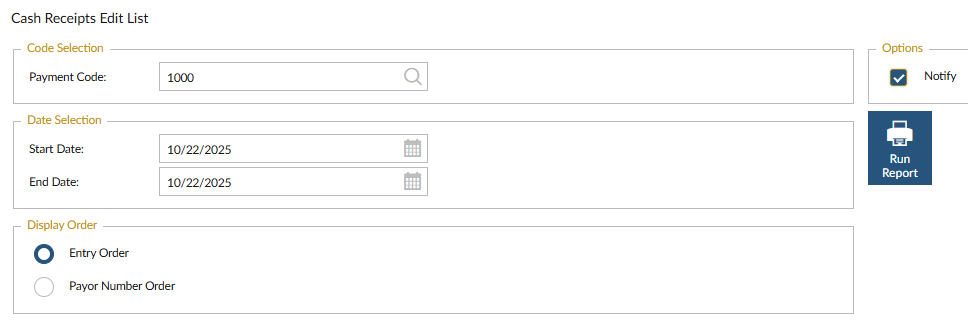
Cash Receipts Edit List
 NAVIGATION: RECEIPTS/835 menu > Cash Receipts > Cash Receipts Edit List
- In the PAYMENT CODE field, select the appropriate Payment Code (typically 1000).
- In the DATE SELECTION fields, enter the start and end dates.
- In the DISPLAY ORDER section, you can choose how you want the report to be grouped – by entry order or by payor.
- Place a check mark in the NOTIFY box and click the RUN REPORT icon.
- Review the report to make sure the total received on the last page of the report and ensure that the total matches your total deposits for the date range selected.
- DO NOT CONTINUE if the total does not match the deposit. If the totals do not match, you need to find the discrepancies before proceeding with the deposit.
Post Cash Receipts
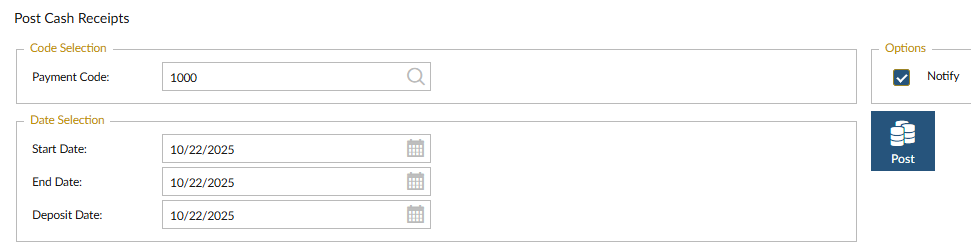
This process will post cash receipts in the system. This process should be run when a bank deposit is made. Remember, at this point in the process the cash receipts include any payor (PROMISe) payments and cash payments received.
NAVIGATION: RECEIPTS/835 menu > Cash Receipts > Post Cash Receipts
- In the PAYMENT CODE field, select the appropriate Payment Code (typically 1000).
- In the DATE SELECTION fields, enter the start and end date.
- In the DEPOSIT DATE field, enter the date the deposit was taken to the bank.
- Place a check mark in the NOTIFY box and click the POST icon.
- The Cash Receipts Register report will be generated. Be sure the total amount on the report matches the amount deposited at the bank.
10/2025