
Add a New Facility - Facility Master Setup
To add a new house (facility) in the Provider Management system's Facility Master Setup, follow these steps. Refer to another facility to ensure settings are correct for billing.
🧭 Navigation: MAINTAIN > Master Tables > Facility Tables > Facility Master
- In the FACILITY field, click the BROWSE button to view existing facilities.
- Determine the next facility number by reviewing the last facility number used. The new facility should typically be the next sequential number.
- Click CANCEL to return to the facility master screen
- In the FACILITY field, type the next sequential number.
- Enter Facility Details:
- In the FACILITY field, type the new facility number.
- In the DESCRIPTION field, enter the name of the facility.
- In the PROGRAM field, select Community Residential
- The STATUS field defaults to active.
- Use the REVALIDATION DATE field to track licensing dates.
- Enter the STATUS DATE to record the facility's opening date.
- Check the AUTHORIZATION REQUIRED box if services at this facility require authorization. This ensures the system verifies available units in the consumer service plan during service entry.
- Complete the General Tab:
- Enter the facility's address, city, state, and zip code.
- Ensure this information matches the details in PROMISe.
- The zip-code must be the full nine digit zip code (refer to ZIP Code™ Lookup | USPS)
- Enter the PROVIDER #
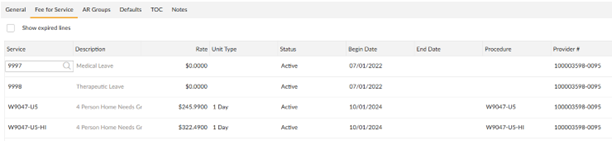
- Complete the Fee for Service Tab:
- Enter 9997 (Medical Leave) and 9998 (Therapeutic Leave) for every facility
- Enter the remaining codes for the services to match the ISP – make sure the details match the ISP
- This information is required for billing
- Service Code
- Rate
- Unit Type – 1 Day for daily codes
- Status – Active
- Begin Date – when the service started at the home
- End Date – always leave this blank unless there is a rate change
- Procedure – enter/copy the service code
- Provider # - enter/copy the provider number from the General tab
- Move to the next line to save the entry
- Enter one line for every service code
- Complete the AR Groups Tab:
- Insurance Group – browse to select PROMISE
- AR Group - browse to select the receivable group; typically 1000
- Save the New Facility: After completing all necessary fields, click SAVE to add the new facility to the system.
Note: Accurate completion of the Facility Master is crucial, as it influences various system features and processes. Incomplete or incorrect information may lead to system malfunctions.
See Setup New Facility for complete details on options in the Facility Master.
2/2026