
Error Check Required Billing Fields Before Creating Billing File
Run the Error Check – Required Fields report regularly to confirm both consumer and facility records are complete. The first time you bill for a new facility or consumer, always run this report as part of your billing process.
🚨 What to Look For: The report will list any missing or incomplete information that would cause claims to be denied.
Run Report
 NAVIGATION: Billing/AR menu > EDI Edit List
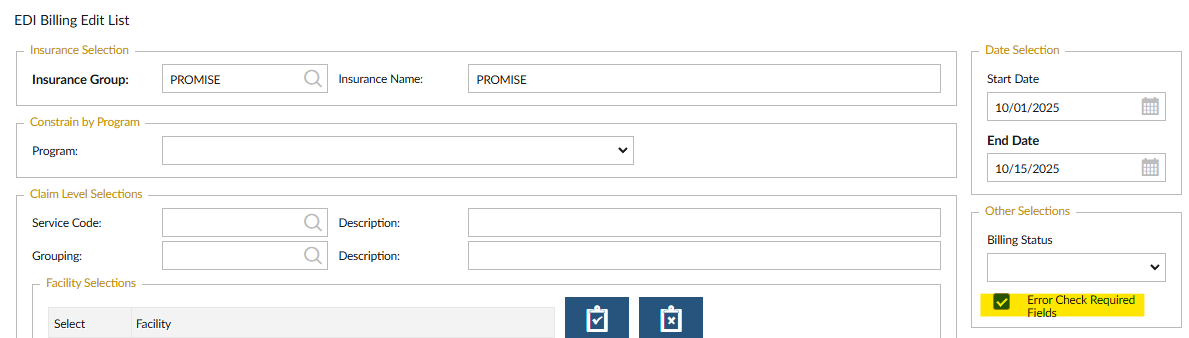
- Insurance Group: In the Insurance Group field, select: PROMISe
- Enter Billing Dates: select the Start Date and End Date for the billing period.
- Select Program and Facility: Choose the appropriate Program and Facility from the dropdown menus.
- Enable Error Check Option: Check the box labeled: Error Check Required Fields
- Click Run the Report to run.
Common Errors and Fixes
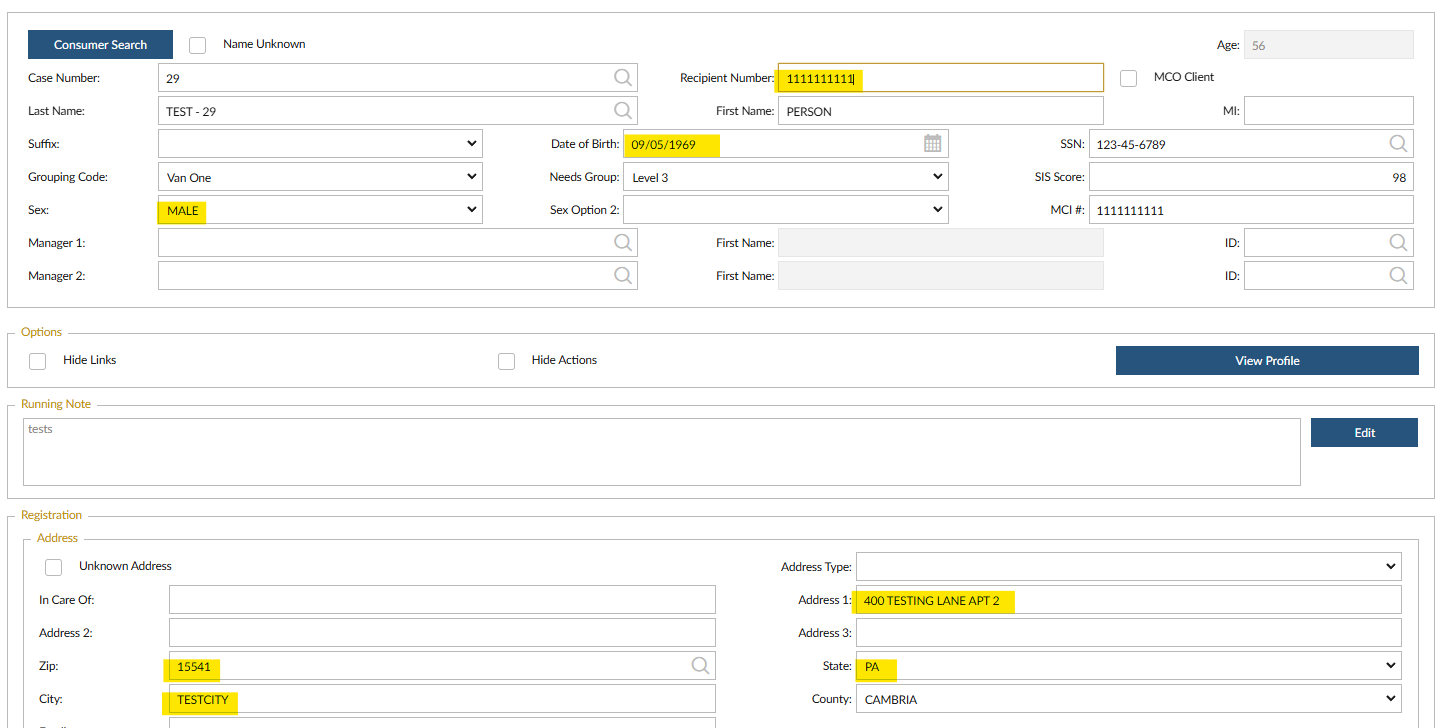
Basic information required for a claim to process. If any of this information is not included, the claim will be REJECTED and not forwarded to PROMISe for payment.
- Missing Consumer Information: Gender, Date of Birth, MA number, address
→ Go to the Consumer Master and enter the information
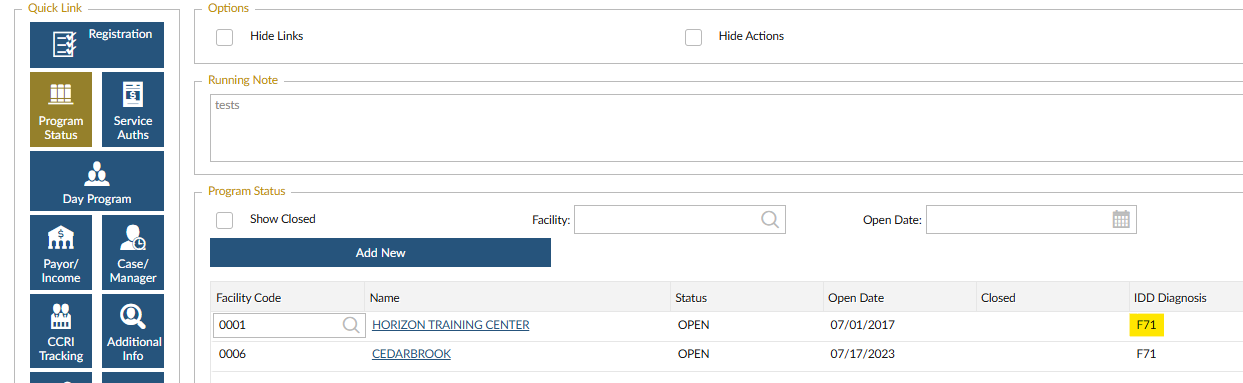
- Missing Diagnosis
→ Fix this in the Program Status section of the Consumer Master.
- Missing Provider Number
→ Go to the Facility Master, then the Fee for Service tab.
→ Enter the Provider # in the correct column for the service code.

🔁 After Fixing Errors: Once errors are corrected, rerun the Unauthorized Services Listing and then this report to confirm all issues are resolved.
2/2026