
Using Groups to Control Menu Access
User Groups allow you to control system access for multiple users at once. Instead of setting permissions individually, you can assign users to a group and define what menus and features they can access.
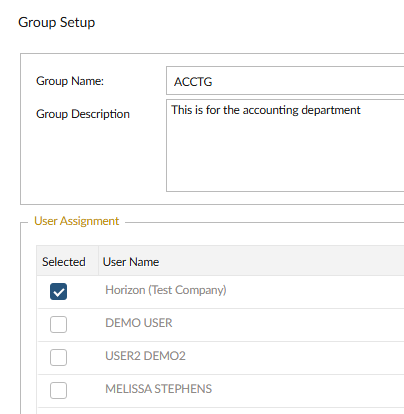
Group Setup
 NAVIGATION: SYSTEM menu > Admin Tools > Group Setup
- In the GROUP NAME field, enter the name (i.e., administration, direct care staff, etc.)
- In the GROUP DESCRIPTION field, enter a brief description.
- In the USER ASSIGNMENT section, select users to include in the group (check the box next to each name)
- Click SAVE
Group Menu Rights
Once the group is created, assign what menus and features users can access.
NAVIGATION: SYSTEM menu > Admin Tools > Group Menu Rights
- In the GROUP NAME field, select the group
- Click the LOAD GROUP RIGHTS INFORMATION icon.
- Review the list of menu options.
- To assign access, click on a menu or sub menu.
- Select items to grant access (assigned items will appear bold)
- To view submenus, click the black triangle next to a menu item
- To remove access, select the item and uncheck Enable Item
- Click Save
4/2026