
Recommended Internet Browser Settings
Internet browser settings can affect how the Stratus system functions. Please review this list of browser settings with your IT staff. These settings will ensure you do not experience any functionality issues.
All users should adjust these settings in their preferred internet browser. If you have multiple users, contact your IT Department to see if they can adjust all user settings from the server. If that is not an option, below are general steps for staff to follow. You may also search the internet for specific directions for your preferred internet browser.
 For best performance, Horizon recommends accessing the Stratus Cloud with Google Chrome or Microsoft Edge with the settings listed below adjusted.
Turn Off Internet Browser Auto Complete Setting
Internet browser settings can affect how entries are made in the system. When entering a client name, the browser saved address settings will pop up over the system's list of names to select from. If you select the browser address, an error will occur on posting.
All users should turn off the saved addresses setting in their preferred internet browser.
Google Chrome Internet Browser
- Open Chrome

- Open Settings: top right side, click the three dot menu
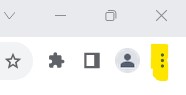
- Select the menu option SETTINGS (typically third from the bottom)
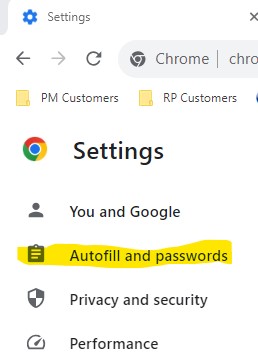
- Select AUTOFILL AND PASSWORDS
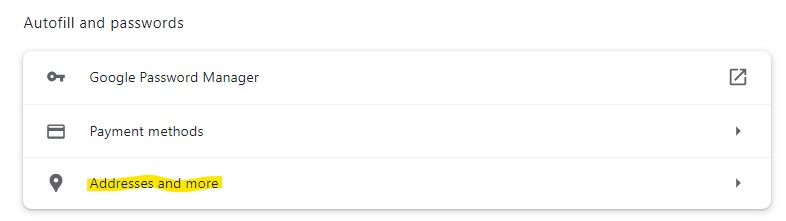
- Select ADDRESSES AND MORE
- Save and Fill Addresses: slide the toggle to the left to turn the setting off
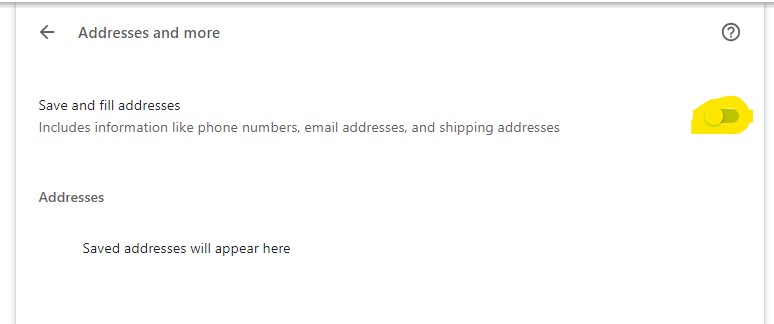
- Addresses: if you see a list of saved addresses in your settings, click on each line and delete to remove all saved entries.
Microsoft Edge Internet Browser
- Open Edge

- Open Settings: top right side, click the three dot menu
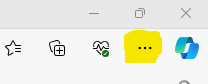
- Select the menu option SETTINGS (typically third from the bottom)
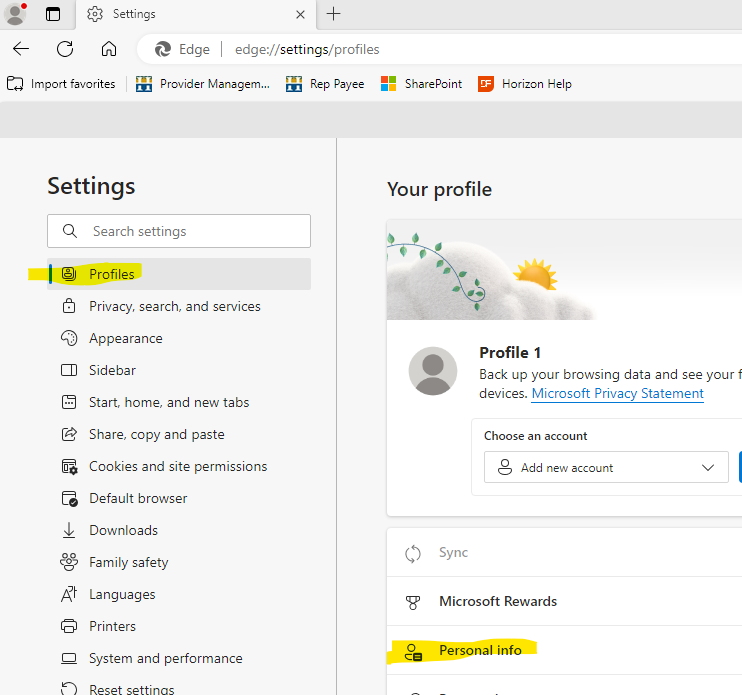
- Select PROFILES
- Select PERSONAL INFORMATION
- Save and Fill Basic Information: slide the toggle to the left to turn the setting off
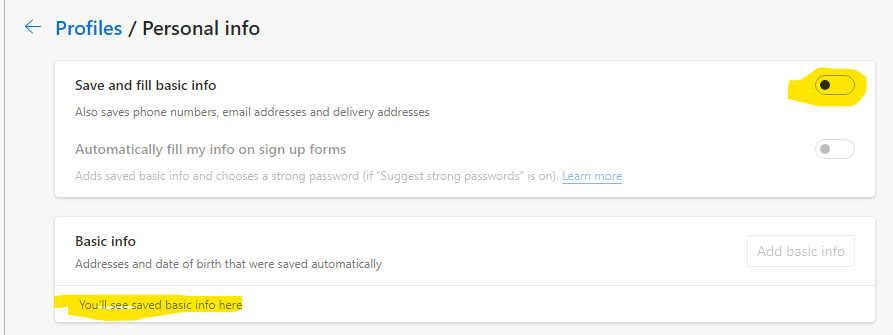
- Basic Info: if you see a list of saved addresses in your settings, click on each line and delete to remove all saved entries.
Other Internet Browser
- If you are using a different browser, simply do an internet search for "how to turn off auto complete in THE BROWSER YOU ARE USING".
- Follow the steps to turn off the auto complete/saved address setting
- Follow the steps to delete any saved addresses
Allow Pop-Ups
While processing various transactions, the Stratus system will display error messages in a pop-up box. If you have all pop-ups blocked, you will not see the error messages that give you the information needed to correct the issue.
You can allow pop-ups for just the Stratus Cloud site.
Google Chrome Internet Browser
Chrome Directions: Block or allow pop-ups in Chrome - Computer - Google Chrome Help
Microsoft Edge Internet Browser
- Click the Settings and More ••• button on the upper-right side of the browser.
- Click Settings.
- Click Cookies and Site Permissions.
- Click Pop-ups and redirects.
- Click Add under the Allow section.
- Enter the website into the Address of website to allow field. Example: stratuscloud.com
- Note: You can use wildcards. If you enter *.stratuscloud.com, this would allow pop-ups for www.stratuscloud.com, stratuscloud.com and other sites that end with .stratuscloud.com
- Click Add
- Close and relaunch Edge.
11/2023