
Log Into Stratus Time Tracking the First Time
Log Into the Stratus Time Tracking Site
- You can access the site from a computer, tablet, or a smartphone.
- Open the link as given to you by Horizon.
- Save the link as a favorite in your web browser.
- The login screen will appear
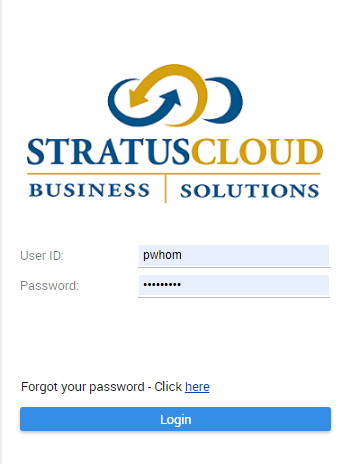
- User ID: your user ID is your first initial followed by your lastname
- Password: the default password is Stratus#2
- You will be prompted to change the password.
- The new password must be a least 8 characters: have at least one lowercase letter, one uppercase letter, one number, and 1 special character @#$%^&*()
Change Password
- Go to the top left Hamburger Menu

- Select System > Change Password
- Enter your current password
- Enter the new password
- Enter the new password again
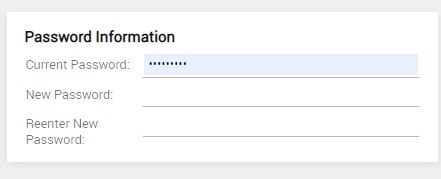
- Password Requirements – Passwords must be a least 8 characters, have at least one lowercase letter, one uppercase letter, one number, and 1 special character @#$%^&*()
- Click the checkmark in upper right to save

Update Employee Signature
- Go to the top left Hamburger Menu
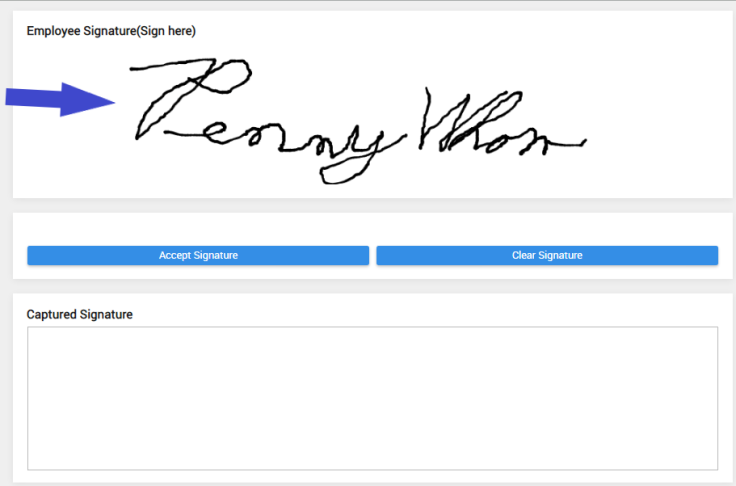
- Select System > Update Employee Signature
- Using your mouse or a touch pad or touch screen: Sign in the top (Sign here) space
- Click Accept Signature to save, or Clear Signature to start over
User Credentials
This screen will allow you to set your Security challenge Questions and contact information.
- Go to the top left Hamburger Menu
- Select System > User Credentials
- Secret Questions - you can change the secret questions and/or answers.
- Contact Options - add email address and cell phone information.
- Cell phone carrier - Please select your correct carrier: sending a text is different per carrier. None or an incorrect carrier may prevent texts from being sent to your phone.
- Click the checkmark in upper right to save

9/2023