
Created: 05/23/11
This how to will show how to create a letterhead that can be included in other documents.
Go to Tools>>Merge Setup>>Merge Template
Enter a unique Code for the letterhead template
For example: LH01
Enter a unique Description for the letterhead template
Select a Letter Type of Shared Component
Enter a Pages of 1
Leave all other selections blank
Click the Design button
Click Cancel on the Project Wizard
Note: The logo or picture should already be scanned and stored somewhere on the computer network
Click the  , or go to Objects>>Insert>>Picture, or do CTRL + P
Then go to the page and while holding down the left mouse button, "draw" a box for the picture (the box can be resized at any time or moved)
Double click the drawing box to open it
Browse to where the picture is stored on your network
Highlight the picture
Enter a check mark in the "Embed in Project" box (this is to prevent the picture being removed from the letter/form if someone deletes it from where it is stored on the network)
Click the Open button
The picture/logo will be displayed on the page and can be sized or moved to where it is needed
If the name and address was entered in Waiting List Settings on the Merge Setup tab then:
Click the + beside the Letterhead folder
Drag and drop as many lines as needed for the address onto the page
Lines can be inserted inside other line (text) boxes, but not into the picture box
Double click the box to open it if multiple lines were added
Move the lines into any order using the up and down arrows 
Format the lines individually or together (hold down the ctrl key while highlighting more lines)
Double click the word Font on the upper right to open a font dialog box
Select a font, font style and size for the line or lines
Click OK to close the font dialog box and save your selections
You can add spacing between lines by entering a number on the right side across from Paragraph Spacing (Hint: the number 12 looks like double spacing)
Click OK to close the Paragraph Properties box when you are done formatting or entering lines
Move the box or boxes to where you want them
Click the  icon or go to Objects>>Insert>>Text or use ctrl + T
Go to the page and while holding down the left mouse button, draw a text box on the page (the box can be resized or moved as needed)
Double click the text box to open it
Click the Insert icon 
Click the Text tab
Type your information in the upper window and click the Insert button - the text will appear in the bottom window inside quotes
Click OK to close the Edit Text window
Additional lines can be created in the text box by repeating these steps
Format the line or lines by highlighting them and double clicking the word Font on the right side to open a Font dialog box.
Select a font, font style and size
Click OK to close the font dialog box
Add spacing between lines by entering a number across from Paragraph Spacing on the bottom right. (Hint - 12 will look like double spacing)
Click the line icon  or go to Objects>>Insert>>Line or use CTRL + L
While holding down the left mouse button - draw a line on the page (the line can be moved at any time)
If the line is not straight
Go to Properties (under Layers)
Move the slide bar till you can see Position and double click it
The Position and Size of the Object dialog box will open
Make the left and right numbers match like the numbers match in the picture below
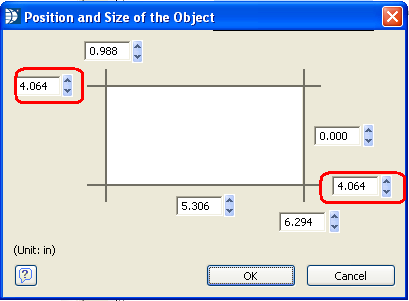
Click OK to close the position box
Your line should be straight
To make the line bold or darker:
Go to Properties on lower left
Find Width
Enter a higher number for Width (for example: .05) and enter
The line on the page will be darker
Click the save icon  or go to File>>Save
Close the letterhead file
Go to File>>Exit
Go to Tools>>Merge Setup>>Merge Template
Select the document Code that you want to add the letterhead to
Click the Design button
Go to Project>>Include
Click the Insert Icon
Browse for the letterhead code where you saved it
Highlight the code
Click the Open button
The letterhead will now be included in the document
Go to File>>Save to save the document before closing