
Revised: 07/02/2013
Go to Reports>>Batch Letters and Forms
This program is used to print a selected letter or form for the applicants displayed with a check mark in the grid.
Select a letter or form code. Merge letters/forms are setup in Merge Template.
The description for the selected letter code will be displayed.
Enter or select an Application For code or this field may be left blank to use another selection criteria.
Enter or select a Waiting List for the selection criteria or leave this field blank to include all waiting lists.
Enter or increment to the number of bedrooms to include or enter 99 for all bedroom sizes.
Enter a number in this field to have the program only pull the applicants who are in position 1 through the number you entered. This field may be left blank to use other selection criteria.
For Example:
If you enter 10, only the applicant's in the top 10 positions will be displayed in the grid.
Appointment Date is the only selection type available in the Waiting List module.
If using a selection type, enter a date range for the range. This field may be left blank if using other methods for generating the report. For example: Build from Last Report.
Press this button to use the selections entered in this program to build tenant information for the grid.
Press this button to build information in the grid from the last report ran in the Waiting List program.
When this button is used, the other selections available on this view may not have any influence on the information that is pulled for the gird.
When one of the build buttons has been activated, the grid will display applicant information based upon the selections entered or from a report.
App For/Tracking/Waiting List information shown in the grid may be selected by placing a checkmark in the X column. When a line of information is checked, the selected letter or form will be printed for it.
The grid includes the following columns:
X (this is the selection column to be checked or unchecked)
App For
Tracking
Waiting List
Last Name
First Name
Click the Select All button to place a checkmark in the X column for all lines.
Click the Unselect All button to remove all checkmarks in the X column for all lines.
The current date will be defaulted in this field and may be changed. The letter date field is a merge variable option which may have been used in the selected letter/form.
Click this button to bring up the print options dialog box shown below:
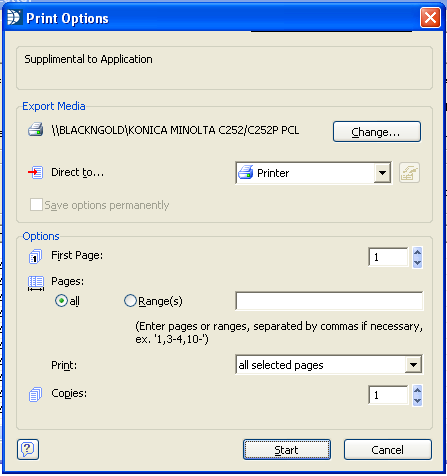
Export media shows the printer that will print out the letters. Click the Change... button to select a different printer.
Defaults to Printer but the preview option may be selected to view the letters prior to printing or you can leave the selection at Printer and click the start button to start printing the letters.
Click the start button to preview or print the letters.
Click the cancel button to close the print options dialog box without printing.
*******************
Will generate and send an email to those listed with email addresses.
Press the Print Labels button after selecting Applicants in the grid to open the Applicant Labels From Batch Letters view.
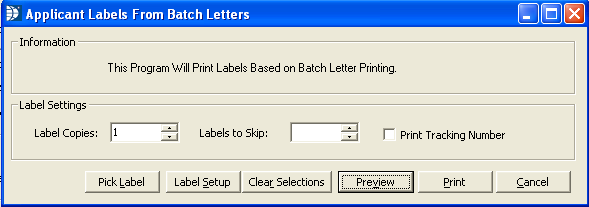
Enter the number of Label Copies to be generated. The program will default to 1.
If you are not printing to a label sheet that has labels missing, enter the number of Labels to Skip
Preview or Print the labels. Note: If you need to change the label format, use either Pick Label or Label Setup to select or create a new label format.
The Close button may be clicked at any time to close the program without printing.