
Revised: 08/17/2012
Go to Reports>>Inspection Form
This program will generate Inspection Forms for one or more Inspection Numbers within the range selected.
Note:
Inspection Forms may also be printed for a selected Inspection Number from the Inspection Master or Inspection History.
Enter or select the beginning inspection number for the report range.
Enter or select the ending inspection number for the report range.
Select a Group Code for the report or leave blank.
Select a Program Type for the report or leave blank.
Select an Inspection Type for the report or leave blank.
Select one of the following date options for the date range:
Scheduled Date
Requested Date
Enter or select a beginning date for the report range.
Enter or select an ending date for the report range.
Place a check mark in the box to print the Cover page for the inspections.
Place a check mark in the box to print the inspection detail on the Inspection Forms.
Place a check mark in the box to print the summary page of the Inspection Forms.
Place a check mark in the box to print pictures for the range of inspections that were selected.
Click the Select Report Printer button to bring up a print dialog box. Select a printer for the report and click print. The report will not print until the Process button has been clicked.
When a printer has been selected for the report it will be displayed to the right of the Select Report Printer button. If the correct printer is displayed to the right of the button, there is no need to select it again.
Click the process button to generate the batch of Inspection Forms. When the process is finished a Process Complete info box will be shown:
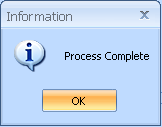
Click OK to close the box and the program.