
Revised: 03/31/2015
Go to Activities>>Inspection Master
This program is used to enter and update inspection information, print inspection forms, create work orders, pull inspection information, move inspections to history, complete inspections or void inspection information for units, buildings or sites.
See Also:
At the top of the program is a toolbar containing quick access to programs or additional menus. Tools that are not active at the moment are darkened.
Programs available from the toolbar in this module are:
Publish Inspection Form - Will publish the inspection to the document viewer where the landlord may login to view it.
Pull
Reset
Unlock Inspection
Select an inspection number to view or update inspection information or leave this field blank to access the Pull Menu.
This area will display the address information for a selected or pulled inspection number. For Section 8 initial inspections, the address information may be entered.
This field will display "Not Created" until a work order has been created for a Public Housing Unit, Site or Building when it will display the work order number.
The Assign Existing WO button is only available when a work order has not been created for or assigned to the inspection. Once a Work Order has been created or assigned to the inspection, the button will no longer be displayed.
When inspection information has been duplicated, this field will display the Inspection Number that it was duplicated from.
This area will display tenant information unless the inspection was for a building or site.
The tenant's last name, first name and middle initial or name will be displayed for the selected or pulled inspection, if applicable.
Displays the tenant's Admission Date from Tenant Management or Section 8 Tenant Master.
Displays the tenant's phone number for the selected or pulled inspection, if applicable.
For a Section 8 unit inspection, displays the Caseworker Code when applicable.
Displays the date the inspection was pulled. The date may be edited.
Displays the date the unit, site or building was last inspected, if applicable. The date may be edited.
The inspection date may be viewed, entered or selected in this field or it may be scheduled using one of following Inspection Scheduling options:
The time of the inspection may be viewed or entered in this field. The inspection time may also be scheduled using one of the following Inspection Scheduling options:
View or select the handheld number for the selected inspection. Handheld numbers may also be assigned to an inspection when the Pull Public Housing process is run.
View or edit the street number for the inspection.
View or edit the street name of the unit,building or site.
View the associated group code or select a group code for the inspection.
For a Section 8 unit inspection, the Section 8 tenant's number will be displayed.
For a Tenant Management unit inspection, the Tenant Management tenant's number will be displayed.
View or edit building information for the inspection.
Directions may be entered in this free text area for the inspector.
The Longitude and Latitude for the unit may be displayed, entered or edited.
Based on the type of inspection pulled the program type should be displayed as one of the following:
Section 8
Public Housing
Enter a short note regarding the program or leave this field blank.
Based on the inspection information pulled the Inspection Type will be displayed as one of the following and may be changed:
Annual Reexamination
Initial
Move-Out Inspection
Quality Control
Reinspection
Special
Sweep
Enter a note regarding the Inspection Type or leave this field blank.
Select one of the following Emergency Tracking options:
Standard
Emergency (Maintenance)
Emergency (Resolved)
<Undefined>
Enter inspection information in the following columns for inspections that have been attempted or completed. Once a unit, building or site has passed inspection the inspection is complete and the remaining lines do not need to be filled out.
For each of the applicable inspections enter or select the date of the inspection.
Select the name of the inspector.
Select one of the following types:
Follow-Up
Initial
Move-Out
Re-Exam
Special
Sweep
Select one of the following conclusions for the inspection(s):
Abatement
Failed
Failed (Forward to Maintenance)
Inconclusive
Passed
Passed (Forward to Maintenance)
Passed with Extension
For the inspection lines that have not passed and require another inspection, enter or select a date for an inspection follow up.
Displays the Owner/Landlord information for the unit inspection. For a Section 8 initial inspection, enter the owner information for the unit.
For a Section 8 initial inspection enter or select the following information. For inspections that have been pulled, the following information will be displayed, when applicable:
Bedroom Size
Sleeping Rooms
County
Voucher Size
Year Built
Census
Contract Date
Housing Type
Manufactured Home, Single Family, Semi-Detached Duplex, Row/Townhouse, Garden/Low Rise, High Rise 5 Stories, Congregate, Cooperative, Independent Groupo Resource, Single Room Occupancy, Shared Housing, Other
Lead-Paint Certification
Longitude
Latitude
When the Verify button is pressed, the program will attempt to verify the unit's address/location from the information entered.
The following address fields will pull information from the Tenant's records or may be entered if applicable:
Address 1
Address 2
City
State
Zip Code
For an initial inspection when the tenant has not yet moved in, the information may be entered or the program may display their current address in the following fields, if applicable:
Address 1
Address 2
City
State
Zip Code
County
The following information will pull from the tenant's records, if applicable:
# of People Who Live in Unit
Ages of Household Members
Children Under 6
Elderly/Disabled Unit
Elevated Blood Levels
Enter the names of owners or tenant household members who were in the unit during the inspection.
Pulls information from the tenant's records to show utilities that the tenant is responsible for. This information may be updated.
One or more of the following utilities may be checked:
Water
Electric
Oil
Gas
Propane
Kerosene
Sewer
Trash
Pulls from tenant's file or may be updated to display who owns the range, if applicable. The indicating "dot" will be in one of the following:
Owner
Tenant
Pulls from tenant's file or may be updated to display who owns the refrigerator, if applicable. The indicating "dot" will be in one of the following:
Owner
Tenant
Pulls from tenant's file or may be updated to display who owns the microwave, if applicable. The indicating "dot" will be in one of the following:
Owner
Tenant
Place a checkmark in the box, if the tenant has or informs of the presence of a pet.
Enter information regarding the pet, if applicable.
For Example:
Type of pet (cat, dog), breed, color, etc.
Place a checkmark in the box if the tenant reports that the owner does indeed make repairs to the unit when requested.
The amount the tenant pays for rent is pulled from tenant records, if applicable, or the amount of rent may be entered.
Select one of the following reasons if the unit was not inspected:
Completed
Occupant Refusal
Mod Rehab
Locked - No Entry
Offline
Vacant
Other
<Undefined>
If applicable, enter a text comment regarding the reason the inspection was not done.
This area will not be available if "Using Dictionary for Smoke Detectors" is checked in Inspections Settings.
For the following locations, when applicable:
First Floor
Second Floor
Third Floor
Basement
Hallway/Other
Select one of the following options:
Passed
Replace Batteries
Failed
Relocate
Repair/Replace
Not Loud Enough (Replaced)
Install SD with Light
Install Smoke Detector
This area will not be available if "Using Dictionary for Housekeeping" is checked in Inspections Settings.
Select one of the following options for housekeeping:
Pass
Fail
<Undefined>
Enter comments regarding housekeeping in the unit, if applicable.
This area will not be available if "Using Dictionary for Condition of Unit" is checked in Inspections Settings.
Select one of the following options to describe the condition of the unit:
Good
Fair
Poor
<Undefined>
Select one of the following:
<Undefined>
N/A
Yes
No
Select one of the following:
<Undefined>
N/A
Yes
No
This is a free text area where comments may be entered for this inspection process.
Select a room from the options available or go to the Add a Room button to add a room that does not show in the list.
Select a deficiency if available.
Pressing this button will bring up a follow-up Checklist dialog box with the following information:
Complete - place a checkmark in the square if the listed deficiency has been corrected
Room - shows the room the deficiency was found in
Inspectable Item - displays the inspectable item that was deficient
Deficiency - displays the deficiency
Delete - will delete the deficiency if checked and the "Delete Marked" button is depressed.
If no deficiencies were found the checklist will be blank.
Place a checkmark in the box if the deficiency was passed with comment.
Click this button to delete those deficiencies that have the "Delete" box checked.
Enter 1 or 2 notes regarding the deficiencies.
Enter a comment if the deficiencies were "Passed with Comment"
Click the close button to close the Follow-up Checklist dialog box.
Click this button to bring up the add a room dialog box.
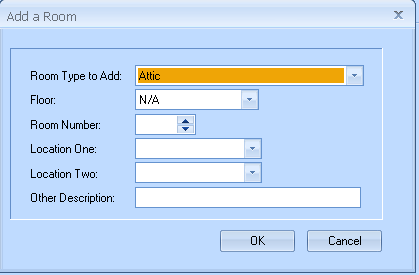
Select a Room Type to add from the list.
Click this button to delete a room from the inspection
You will be asked to confirm the deletion of the current room
Click Yes to confirm the deletion or No to stop the deletion of the room
Click the button to bring up the Edit a Room dialog box.
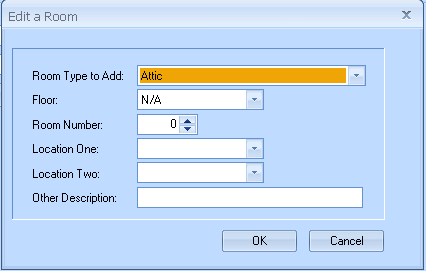
Select the room to edit from the list.
Edit any of the following information:
Pick a room and click the Inspection Wizard button to open the Room Inspection interface.
Select an area or room to inspect or leave this option blank and click next.
Click the next button to continue with the room inspection.
Click the close button to close the inspection wizard without completing the room inspection.
Checkmark any items that are deficient.
Select one of the following severity levels for the checked item:
Level 1
Level 2
Level 3
Select an option, if applicable.
Place a checkmark in this field if the item passed inspection and enter any comments in the text box.
Select the next area or room to inspect or leave this option blank and click next.
Continue inspecting the areas or rooms until all have been inspected and you reach the Finish page.
A summary of the inspection will be displayed on this page showing the following information:
Number of items failed
Number of total deficiencies
Number of items passed with comments
General comments regarding the inspection may be entered in this area.
Use the quick Link area to select a room or inspectable area to return to or leave it blank and finish the inspection.
Click the back button to return to a previous inspectable room or area.
Click the finish button to complete the room inspection and close the wizard.
Click the close button to close the wizard.
Continue inspecting area/rooms until all have been inspected.
If a signature was obtained for the inspection using the Inspection tablet, it will be displayed.
Select a page number to display pictures for that page.
Press the Display Images button to display pictures for the selected page.
This area will display pictures that have been taken with an Inspection Tablet and attached to an Inspection file.
**********************************
**********************************
Go to Activities>>Inspection Master>>Print
Under print on the tool bar are the following menu options:
**********************************
**********************************
Go to Activities>>Inspection Master>>Print>>Inspection Form
This program opens a dialog box with options for printing a Cover Page, Inspection Detail, Inspection Summary or Pictures. for the selected inspection number.
Note:
Inspection Forms may also be printed from Inspection History or in by batch using Inspection Form.
At the top of the report view is the toolbar contain the following report options:
Preview
Print with Setup
Export
Clear Selections
For more information on these options, click here.
Defaults to the inspection number that was selected when Print>>Inspection Form was selected.
The default inspection number may be changed by selecting a different inspection for the report.
The options default to having all the pages checked. Uncheck or check any of the following pages to print:
Cover Page
Inspection Detail
Inspection Summary
Print Pictures
For Inspection Detail and or Inspection Summary select one of the following options:
Default
Force Print all Comments
**********************************
**********************************
Custom Forms and Letter information is in another file, click here for the information.
**********************************
**********************************
Go to Activities>>Inspection Master>>Details
This program will display inspection details for the selected room and item.
Select a room to view inspection details.
Select an Inspectable Item from the list.
Click the Previous button to go back to a room item that was inspected and already viewed.
Click the Next button to go on to the next room item that was inspected.
If items were noted during the inspection process, the information will be displayed. When new items are double clicked in the grid the note fields will be opened for editing.
If an item was passed with a comment during the inspection, the box will be checked. When new items are double clicked in the grid the box will be available for a editing.
If the inspection of the item was inconclusive, this box will display a checkmark. When new items are double clicked in the grid the inconclusive field will be open for editing.
Any comments added during the inspection of the item will be displayed. When new items are double clicked in the grid the comment box will be available for entry/editing.
When a room and item are selected, the deficiencies associated with the room item will be displayed. Changes may be made in the grid by highlighting or double clicking a line.
**********************************
**********************************
Go to Activities>>Inspection Master>>Followup
The Followup Checklist program will open to display a checkable list of deficiencies in the unit.
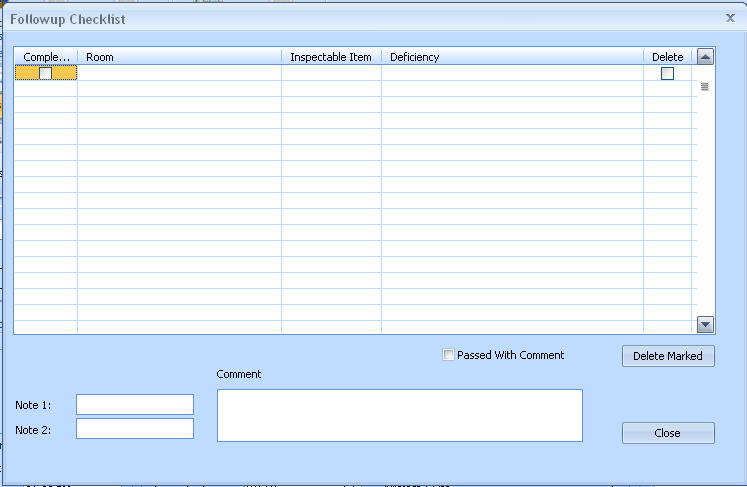
Dificiencies can be checked as completed in the grid and/or checked to be deleted from the grid (use the Delete Marked button to delete those items with a checkmark in the Delete column)
Items can be check marked as Passed with Comment
Note 1 an 2 can be filled in as well as a comment entered
**********************************
**********************************
Go to Activities>>Inspection Master>>WO
This program will create a work order for the selected Inspection #. The Maintenance module must be installed and setup.
Click the WO icon and the following Question box will be displayed:
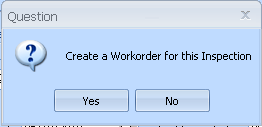
Click Yes to create the Work Order. The work order will be available for editing in the Maintenance module.
Click No to return to the Inspection Master without creating a Work Order
**********************************
**********************************
Go to Activities>>Inspection Master>>Pull
Note: This option is dimmed/not available if there is an Inspection Number selected. Clear the Inspection Master and pull will become available.
The following programs are available under Pull:
Go to Activities>>Inspection Master>>Pull>>Pubic Housing Unit
This program will pull a selected Tenant Management Unit into the Inspection Master.
Note: Pull is dimmed/not available if there is an Inspection Number already selected.
When Public Housing Unit is selected from the menu, the "Pick Public Housing Unit to Inspect" dialog box will be brought up.
Example:
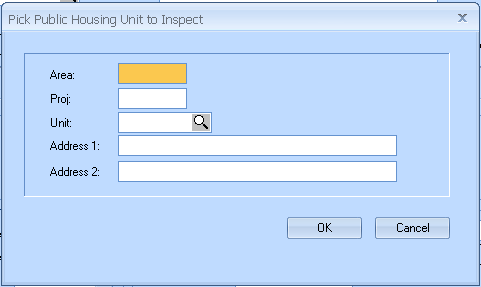
Use the Unit field to browse for a unit to pull into the Inspection Master or enter the unit number (Area, Project, and Unit numbers) in the proper fields and press F9.
Click OK
The "Pick Public Housing Unit to Inspect" interface will disappear and the unit's information will be in the Inspection Master.
*************************
Go to Activities>>Inspection Master>>Pull>>Pubic Housing Building
This program will pull a selected Tenant Management Building into the Inspection Master.
Note: Pull is dimmed/not available if there is an Inspection Number already selected.
When Public Housing Building is selected from the menu, the "Pick Public Housing Building to Inspect" dialog box will be brought up.
Example:
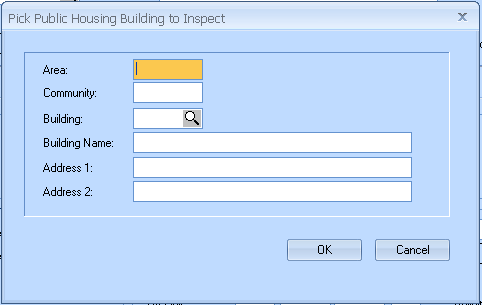
Use the Building field to browse for a building to pull into the Inspection Master or enter the building number (Area, Community, and Building number) in the proper fields and press F9.
Click OK
The "Pick Public Housing Building to Inspect" interface will disappear and the building's information will be in the Inspection Master.
***************************
Go to Activities>>Inspection Master>>Pull>>Pubic Housing Site
This program will pull a selected Tenant Management Site into the Inspection Master.
Note: Pull is dimmed/not available if there is an Inspection Number already selected. Clear the Inspection Master to make Pull available.
When Public Housing Site is selected from the menu, the "Pick Public Housing Site to Inspect" dialog box will be brought up.
Example:
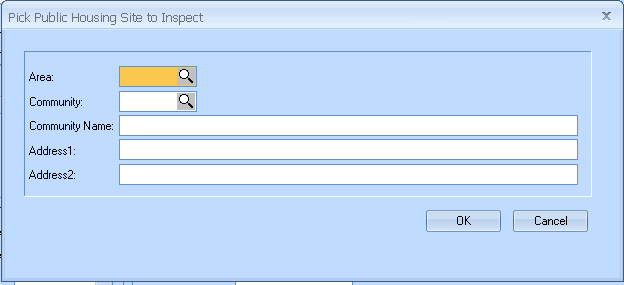
Use the Area or Community field to browse for a site to pull into the Inspection Master or enter the Area and Community numbers in the proper fields and press F9.
Click OK
The "Pick Public Housing Site to Inspect" interface will disappear and the site's information will be in the Inspection Master.
***************************
Go to Activities>>Inspection Master>>Pull>>Section 8 Unit
This program will pull a selected Section 8 Unit into the Inspection Master.
Note: Pull is dimmed/not available if there is an Inspection Number already selected. Use the "Clear" icon to clear the Inspection Master, then pull will become available.
When Section 8 Unit is selected from the menu, the "Pick Section 8 Unit to Inspect" dialog box will be brought up.
Example:
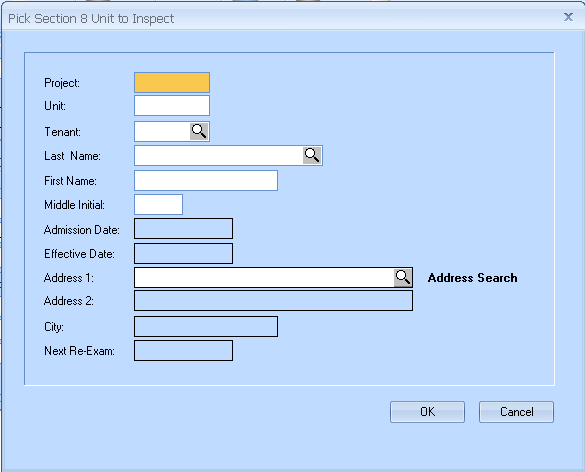
Use the Tenant, Last Name or Address field to browse for a unit to pull into the Inspection Master or enter the Project, Unit and Tenant numbers in the proper fields and press F9.
Click OK
The "Pick Section 8 Unit to Inspect" interface will disappear and the site's information will be in the Inspection Master.
***************************
Go to Activities>>Inspection Master>>Pull>>Rent Reasonableness Unit
This program will pull a selected Rent Reasonableness Unit into the Inspection Master.
Note: Pull is dimmed/not available if there is an Inspection Number already selected. Use the "Clear" icon on the main toolbar. This will make the pull icon available for use.
When Rent Reasonableness Unit is selected from the menu, the "Pick Rent Reasonableness Unit to Inspect" dialog box will be brought up.
Example:
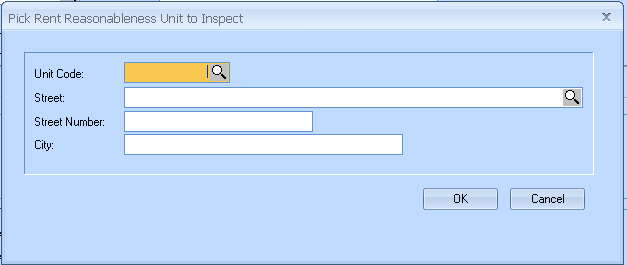
Use the Unit Code or Street field to browse for a unit to pull into the Inspection Master or enter the Unit Code in the proper field and press F9.
Click OK
The "Pick Rent Reasonableness Unit to Inspect" interface will disappear and the Rent Reasonableness Unit's information will be in the Inspection Master.
***************
Go to Activities>>Inspection Master>>Reset
This program will reset the unit's inspection information and remove all deficiencies.
When this option is selected from the toolbar, the following question box will appear:

Click Yes to reset the unit, removing all deficiencies
Click No to return to the Inspection Master without resetting or removing the deficiencies
*******************************************
*******************************************
The following programs are available under complete:
Go to Activities>>Inspection Master>>Complete>>Move Inspection to History
This program will move the selected inspection to history.
There is no confirmation question, the inspection will be moved to history when this option is selected.
The program does not validate inspection information and will move incomplete inspections to history.
Inspections that have been moved to history in error may be returned to active status from the Inspection History program.
**************************
Go to Activities>>Inspection Master>>Complete>>Close and Duplicate
This program will make a copy of the selected inspection and close the original inspection.
When this program is selected from the menu the following confirmation question will appear:
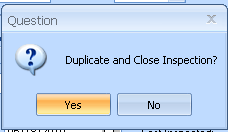
Click Yes to duplicate the inspection information and close the original
The duplicated inspection information will be in the Inspection Master and will display the original Inspection # in the Dup From # field.
The closed inspection can be reviewed in the Inspection History program
Click No to close the question box and return to the Inspection Master without closing or duplicating the information
*********************************
Go to Activities>>Inspection Master>>Complete>>Void Inspection
This program will void the selected inspection.
When this program is selected from the Complete menu the following confirmation question will appear:
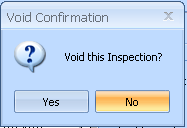
Click Yes to void the inspection
An inspection that has been voided may be viewed and/or changed back to active status from the Inspection History program.
Click No to return to the Inspection Master without voiding the inspection
************************