
Revised: 04/22/2015
Go to Processes>>Unit Master
This program is used to setup and maintain Unit information.
Note:
This is the same Unit Master that is available in Tenant Management. Any units setup or changed in this program will be setup or changed in Tenant Management.
Enter or select an Area ID. Area IDs are setup and maintained in the Area Master found in the Tenant Management module.
The selected Area ID's name will be displayed in this field.
Enter or select a Community ID. Community IDs are setup and maintained in the Community Master found in the Tenant Management module.
The selected Community ID's name will be displayed in this field.
Select an existing unit or enter a new unique unit number.
The unit's address may be displayed, entered or edited in the following fields:
Address 1
Address 2
City
State
Zip Code
Will display or allow selection of one of the following:
Available for Occupancy
Closed Permanently
Offline
Under Development
Under Mod
Will display or allow selection of one of the following:
<<Not Applicable>>
Designated as Elderly Unit
Family Unit
Merged Unit
Non Dwelling
Will display or allow entry of the project number HUD has assigned.
Will display or allow entry of the unit number HUD has assigned.
Will display or allow entry of the apartment number for the unit. if applicable.
Will display or allow selection of the building identification information.
Will display or allow entry of the entrance identification information for the unit.
Will display or allow entry of the floor the unit is located on.
Will display or allow entry of the number of bedrooms available in the unit.
Place a checkmark in one or more of the following to indicate that the unit is accessible for it:
Handicapped Accessible (General)
Vision Accessibility
Hearing Accessibility
Physical Accessibility
Displays or allows entry of the date of full availability, if applicable.
Displays or allows entry of the date for the End of the Initial Operating Period, if applicable.
Displays or allows entry of the date the unit was placed In Service.
Displays or allows entry of the In Service Code.
Displays or allows entry of the Out of Service Date, if applicable.
Displays or allows entry of the Out of Service Code, if applicable.
Displays or allows entry of the Move In Date, if applicable.
Displays or allows entry of the Move Out Date, if applicable.
Displays or allows entry of the date of the last complete inspection.
Displays or allows entry of the date the unit is due for its next inspection.
Displays or allows entry of the date the unit was taken out of service for maintenance, if applicable.
Displays or allows entry of the date the unit will be out of maintenance and ready for occupancy, if applicable.
Options available under this area vary depending upon the program type selected. Check options that should affect the unit for the program.
Market Rent - Check this box if the tenant's income has increased and they must now pay market rent.
Tax Credit
Home
Tax Exempt
PennHOMES
Displays or allows selection of a valid unit type from the list.
Unit Type IDs are setup by the user in the Tenant Management module in the Unit Type Master File.
If the utility allowance information has been set up in the Tenant Management, Community Master, there is no need to set it up for the individual units unless the unit information should be different than the Community.
Check any of the following utility allowances for the unit and indicate the power source when applicable. This information will be available to merge into forms and letters and is used during rent calculations.
A checkmark in any of the following utilities indicates that the tenant is responsible for payment and may be eligible for an allowance:
Allowance for Heat
Allowance for Air
Allowance for Cooking
Allowance for Other Electric
Allowance for Water Heater
For any checked utility, the type of fuel used to supply the utility should be displayed. The displayed fuel source may be edited.
The following utilities may be checked if the tenant is responsible for payment:
Allowance for Water
Allowance for Sewer
Allowance for Trash
Allowance for Range
Allowance for Refrigerator
Clicking this button will reset utility information based on the information setup in the Community Master in Tenant Management.
Automatic payment information may be setup or are already setup for the one or more of the following:
Gas Meter & Gas Account
Electric Meter & Electric Account
Water Meter & Water Account
Sewer Account
If an inspection group was setup for the unit, it will be displayed here. Otherwise, the Inspection Group selected in the Community Master will be the default inspection group.
The unit's bedroom size will be displayed.
For each of the applicable bedrooms, enter or select the following information:
Floor - enter the floor the bedroom is located on.
Location 1 - select one of the following:
<Undefined>
Right
Left
Center
Location 2 - select one of the following:
<Undefined>
Front
Rear
Center
Room # - enter or increment to the appropriate room number
Other Description - enter other information regarding the room's location
The tracking grid will display the following information that has been added for the unit.
Date
Time
Description
User ID
An extended description for the tracking item will be displayed in the window below the grid.
Press the Add Tracking Item button to begin the process of adding a tracking item. The following screen will be displayed.
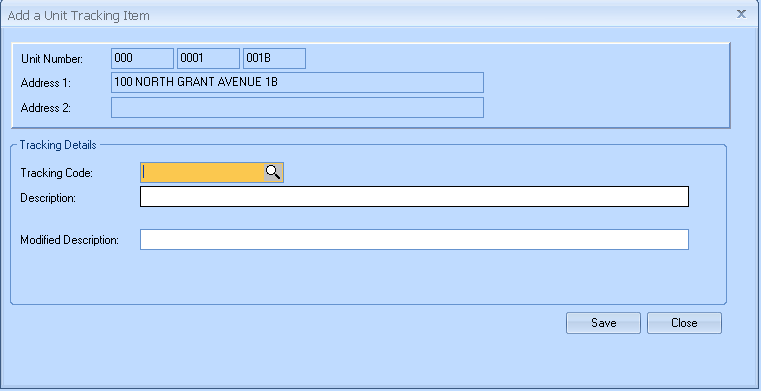
Select a tracking code
Enter a modified description
Save the entry or close
Press the Print Tracking Items button to bring up the screen shown below:
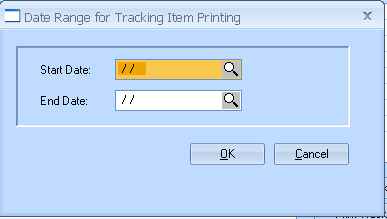
Enter a start and end date and click OK to print tracking information for that date range.
Exempt days may be setup and maintained in this area.
Setup and maintain the following information:
Start Date
End Date
Comments