
Go to Activities>>Calendar Style
This program is used to "Click and Stick" unscheduled inspections onto a calendar interface for the appropriate date and time.
Scheduled dates and times will be shown in the Inspection Master for the Inspection #.
Appointments that are deleted from the calendar do not update the Inspection Master
Note:
The user's Microsoft Outlook calendar can be setup as the interfaced calendar in Inspection Settings>>Calendar Settings.
Select an Inspector for whom the inspection appointment date and times are to be scheduled.
This window will show all inspection numbers that do not have an inspection date and time setup.
Click on an unscheduled inspection to highlight it and then double click on a day/time on the calendar to bring up the Add/Edit Event dialog box.
Click the Day button to change the calendar to view that day. A day may be highlighted prior to clicking the day button to view the selected day.
In this view work hours will be displayed on the left
Click the Week button to change the calendar to view a selected week.
In this view work hours will be displayed on the left
When in weekly view mode the following options will be available:
Show work week - place the "dot" in this option to have the week shown only include those days of the week that are workdays. Workdays are set in Inspection Settings>>Calendar Settings
Show full week - place the "dot" in this option to have all seven days of the week displayed in the weekly calendar view.
Click the Month button to change the calendar view to a monthly one. If a day or week for a particular month has been selected, the calendar view will be for the selected month.

Use the left arrow to turn the calendar view back one or more days, weeks or months.
Use the right arrow to turn the calendar view forward one or more days, weeks or months.
The day, week or month dates will be displayed to the right of the selection arrows.
Click on an unscheduled inspection to highlight it.
Double click on a date/time on the calendar
The Add/Edit Event dialog box will appear
Example:
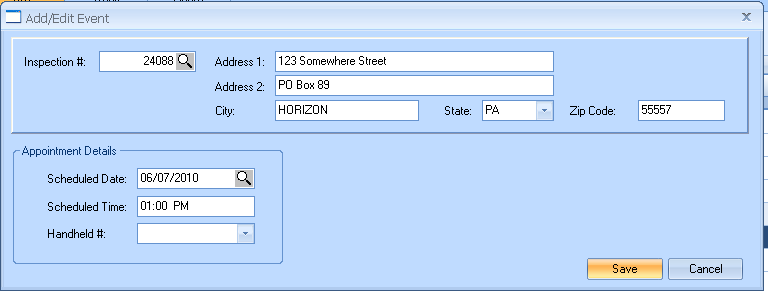
The Add/Edit Event box will show the Inspection # and information and the Appointment Date, Time and Handheld #.
The following information may be edited:
Inspection #
Scheduled Date
Scheduled Time
Handheld #
Click the Save button to save the information to the calendar
The Inspection date, time and handheld number will also be saved in the Inspection Master for the Inspection #.
Appointments that are deleted from the calendar do not update the Inspection Master