
Setup New Employees
Employee information is maintained in the Employee Master. When adding a new staff member, this is the first step.
Add a New Employee
 NAVIGATION: MAINTAIN menu > Master Tables > Employee Tables > Employee Master
- In the Employee Number field:
- Enter a new employee number consistent with your numbering format
- Click Browse to view the last number used
- Enter the employee's First Name and Last Name
- Sandata ID (if applicable): Enter if the employee provides EVV services
- After submission to Sandata, the Registered box will automatically be checked
- Click Save at the top of the screen after entering information
- Minimum Required Fields
- Employee Number
- Employee Name
- Email (only required for mobile app users)
- All other fields are optional.
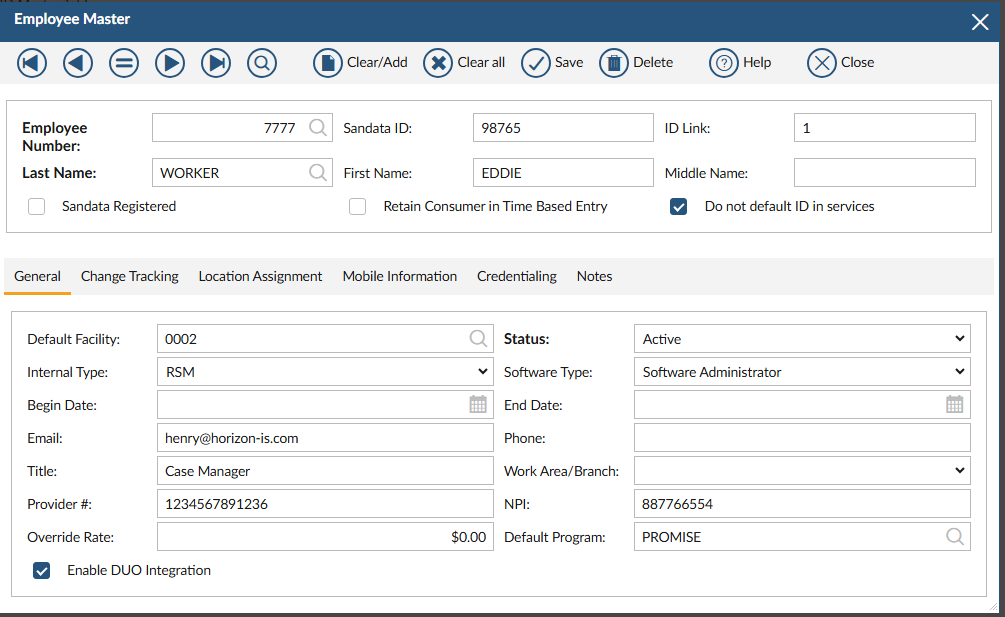
Complete Tabs (As Needed)
- General Tab
- Default Facility
- Status: active or terminated
- Internal Type: internal job title/category
- Software Type
- Software administrators have full access to the system
- Time tracking administrators can edit EVV entries (admin/override options)
- Begin/end dates of employment
- Email
- Important:Email is required for staff using the Stratus Mobile App
- Phone
- The Title field will display with the staff signature on notes
- Work Area/Branch will default in job entry
- Provider # and NPI if needed for billing purposes
- Default Program
- Change Tracking Tab
- Tracks changes to employee name or title
- Home Assignment Tab
- Assign homes for Attendance Entry (Load My Homes)
- Check Rights to All Consumers if staff should access all clients
- Mobile Information Tab
- Displays registered mobile device (if using Stratus Mobile App)
- If registered, status shows Enabled
- Use Erase Local Phone Data to remove app data from device
- Check Force Mobile Device Password Rest to make the employee reset their mobile app password

- Credentialing Tab
- Track staff credentials
- If credentials should display on signatures, enter them in the Title field (General tab)
- Notes Tab
- Enter any additional notes related to the employee
- Click Save at the top of the screen after entering information
Edit an Employee
- Select the employee
- Make changes
- Click Save at the top of the screen after entering information
 VIDEO: How to Enter and Edit an Employee
Employee Rights to Consumer Information
By default, staff cannot access consumer information until either given admin rights to all open consumers or permission to specific consumers.
- Home Assignment Tab
- Check Rights to All Consumers (not RSR) if staff should access all clients
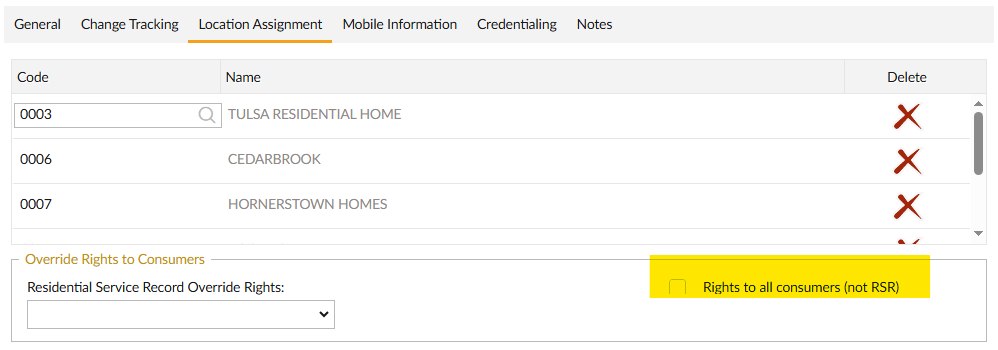
- Check Rights to All Consumers (not RSR) if staff should access all clients
- To restrict access to consumers based on home or staff, review Employee Rights to Consumers
Setup and Manage User Login
After new employees are added into the system, a user login can be created so they can access the system.
Refer to Setup and Manage User Login for complete directions.
4/2026