
Setup and Manage User Login
Before creating a user login, the employee must be added in the Employee Master. Review Setup New Employees.
Create a New User Login
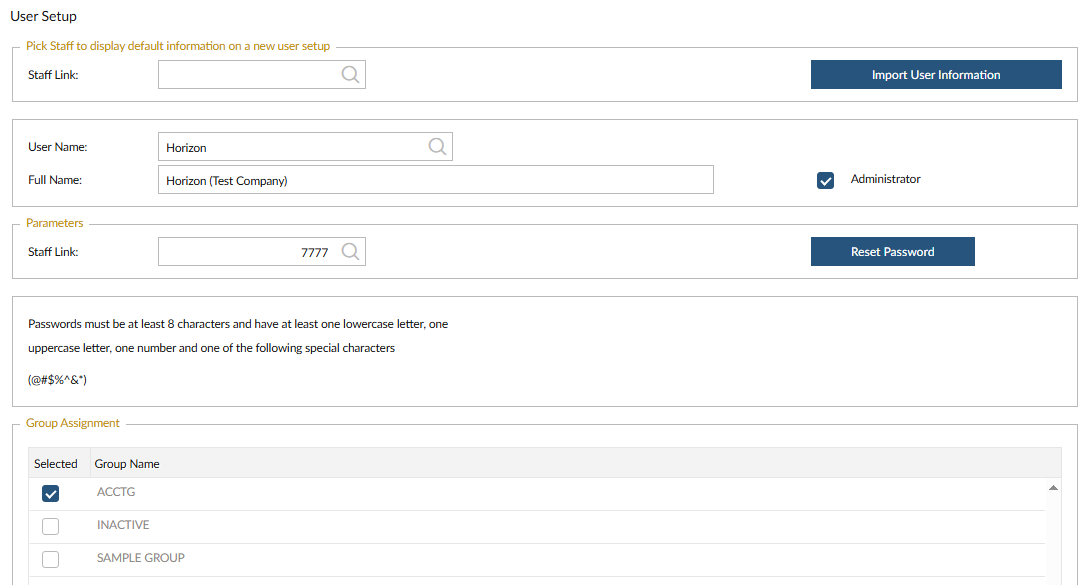
 NAVIGATION: SYSTEM menu > Admin Tools > User Setup
- In the Staff Link field, click Browse and select the employee
- The User Name and Full Name will automatically populate from Employee Master
- In the User Name field, enter or update the desired login name
- Verify the Full Name
- If incorrect, update it in Employee Master
- (Optional) Check Administrator - this gives full system access
- Confirm the Staff Link is populated - This is required for the user to log in
- In the Password field enter a temporary password following system guidelines
- (Optional) Assign User Groups - Select groups in the Group Assignment section if used
- Click Save
Menu Access
- By default, users have access to most menus and features
- Only Administrators can access System Settings and Admin Tools
- To restrict access:
- Setup User Menu Rights, or
- If you use groups in the system, assign the employee to the correct group following Using Groups to Control Menu Access.
Reset User Password
System administrators can reset staff passwords if the user lost or forgot their password.
NAVIGATION: SYSTEM menu > Admin Tools > User Setup
- In the USER NAME field, use the BROWSE button to select the user.
- The User Name and Full Name fields will populate.
- Click RESET PASSWORD button.
- In the NEW PASSWORD field, type what you want the new password to be changed to. Passwords must be at least eight (8) characters and contain at least one (1) of the following:
- Lowercase letter
- Uppercase letter
- Number
- Special character @ # $ % ^ & * !
- In the REENTER NEW PASSWORD field, type the new password again to confirm.
- Click the CHANGE PASSWORD button.
- The next time the user logs into the system, they need to use the new password.
Delete a User
Deleting a user will:
- Remove system access
- Prevent login
The employee record will still remain in Employee Master for reporting.
- Click Browse in the User Name field
- Select the user
- Click Delete
- Key Notes
- Staff Link is required for login access
- User information is tied to Employee Master
- Group assignments can control access across multiple users
 VIDEO: How to Setup and Modify Users
4/2026