
Check Book Master - Change Check/Electronic Numbers
The program stores the last check number and the last ACH number used for each check book in the Checkbook Master. At some point you may need to change one or both of these numbers because you ordered new checks or because of some issue, the check number/last electronic number shown in the Checkbook Master is incorrect.
Checkbooks need to be initial setup from the Client Master. See Client Master - Setup an Individual Check Book
 NAVIGATION: MAINTAIN menu > Master Tables > Miscellaneous Tables > Check Books
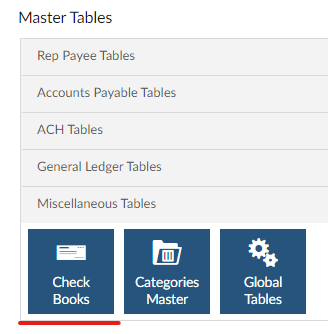
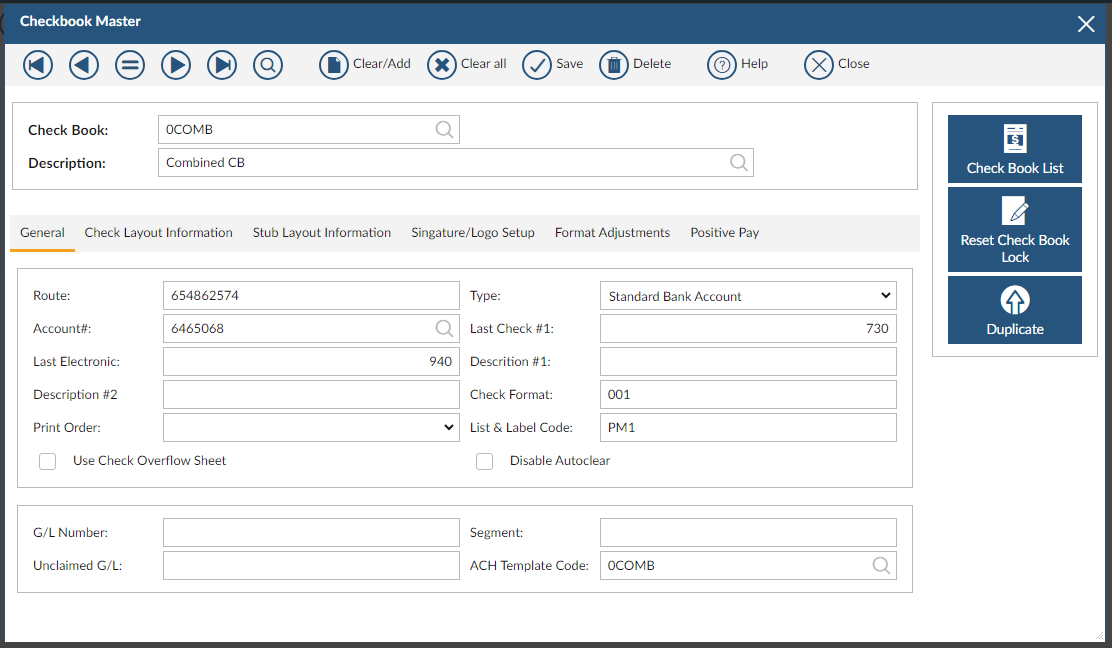
- In the CHECK BOOK field, enter or select the Check Book ID that needs check numbers/electronic numbers reset
- Reset Printed Check Numbers
- If you need the starting check number in Create, Print and Post Checks to be 2001, then the Last Check #1 in the Check Book Master should be entered as 2000.
- On the General Information Tab, change the number in Last Check #1 to the last check number used or one number less than the number you need.
- Reset Electronic Number (ACH)
- On the General Information Tab, change the number in Last Electronic # to the last electronic number used or one number less than the number you need.
- Click SAVE
7/2022