
Billing Process and Checklist
Stratus Provider Management is a powerful billing system designed to simplify your workflow. To ensure all billing features, processes, and reports function correctly, it’s important to follow the weekly billing process below. Following this checklist weekly ensures your billing, payments, and reports stay clean and accurate — and keeps you ready for audits and compliance reviews.
Weekly Billing Checklist
Monday
- Trade File Import
- Process 835 Files
- Post Cash Receipts
Tuesday
- Run HCSIS Compare
Wednesday
- Enter/Review Services – Service Detail Report
- Run Unauthorized Service Listing
- Process EDI Billing File
- Review 277 Verification - If any claims are rejected, research and resubmit the same day.
- Create Accounts Receivable (AR) - Always create AR after generating a billing file.
Thursday
- Payment Applications - Review and apply payments to outstanding claims.
Billing Process Explained
The steps below explain how the weekly billing process works. For this example, we’re using PROMISe as the payor, but these same steps apply to any insurance company.
Each organization’s process may differ slightly. Smaller organizations may have one person completing all steps, while larger organizations divide tasks among multiple staff.
Required Logins
To complete billing, make sure you have access to:
- Stratus Provider Management
- HCSIS
- PROMISe
- EDIaaS
- EDIaaS requires a password update every 180 days. You will maintain the EDIaaS login in Provider Management at Maintain - Master Tables - Payor Tables - EDIaaS credentials
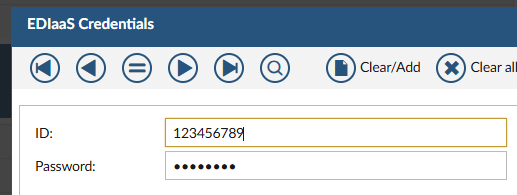
- EDIaaS requires a password update every 180 days. You will maintain the EDIaaS login in Provider Management at Maintain - Master Tables - Payor Tables - EDIaaS credentials
Trade File Import
PROMISe issues a weekly trade file the Monday after billing submission. This file updates claims with the ICN (Internal Control Number) — required for processing voids or adjustments.
- Log into the PROMISe website and download the trade file.
- Import it into Stratus Provider Management (see Trade File Import help guide).
- Review the Review PROMISe Claim Status report:
- Shows claim status: Not Billed, Denied, Adjusted, or Paid
- Goal: Move all claims to PAID (Approved for Payment).
🕓 Note: PROMISe trade files are only available for 2 weeks, with a 2-week request window after that — then they are deleted.
835 Files - Electronic Remittance Advice
The 835 file is the electronic payment report. It’s usually issued about three weeks after billing submission.
- Confirm Accounts Receivable has been created before downloading the 835.
- Run an AR Edit List – if it’s blank, move forward.
- Download the 835 files from the EDIaaS website.
- Import and process them in Provider Management (Follow these steps to Process 835 Files).
Process Cash Receipts
After the 835 files are processed, review and post the cash receipts.
- Review and post receipts by deposit date. (see
- Once posted, the system automatically links payments to claims.
- You’ll see payment date and check number in Service Maintenance.
HCSIS Compare
This report ensures consumer service authorizations in Stratus match what’s in HCSIS.
- Download the service authorization file from HCSIS.
- Import it into Stratus and run HCSIS Compare.
- Review any mismatches in:
- Facility
- Service authorization
- Units, effective dates, or rates
- Fix differences before submitting billing.
- Follow these steps HCSIS Compare.
Review Services
Run reports to confirm all billable services are entered correctly:
- Service Detail Report
- Missing Services List - Residential Services
- Documentation to Billing
- Create Services from Job Entry
Billing Prep - Unauthorized Service Listing
This step is required before generating a billing file. It checks for services that lack authorizations or have run out of units.
If all services are valid, the report will be blank.
See Unauthorized Service Listing
EDI Billing Process
This process creates the 837 billing file submitted to EDIaaS. See EDI Billing Process
Create Accounts Receivable
Creates the official record for all billed claims. Why it matters:
- Required for 835 processing, voids, and adjustments.
- If you don’t use Horizon Financials, AR provides data for manual revenue entry.
- See Create Accounts Receivables
Payment Applications
After processing 835 files and posting receipts, payments are automatically applied to open claims.
If a payment doesn’t apply automatically, manually match it using the Payment Applications screen.
2/2026